Metrics in Make
Read a metric's row and chips, open its Definition tab, run it with Try it, and manage its settlement, filters and rules.
Once you accept a definition, you look after it in Make. On this page you read a metric's row on the Domain Glossary, open its Definition tab, run it for your own dates with Try it, and learn how settlement makes a figure provisional or incomplete. You also learn where filters, settlements and rules show up, and how to retire them.
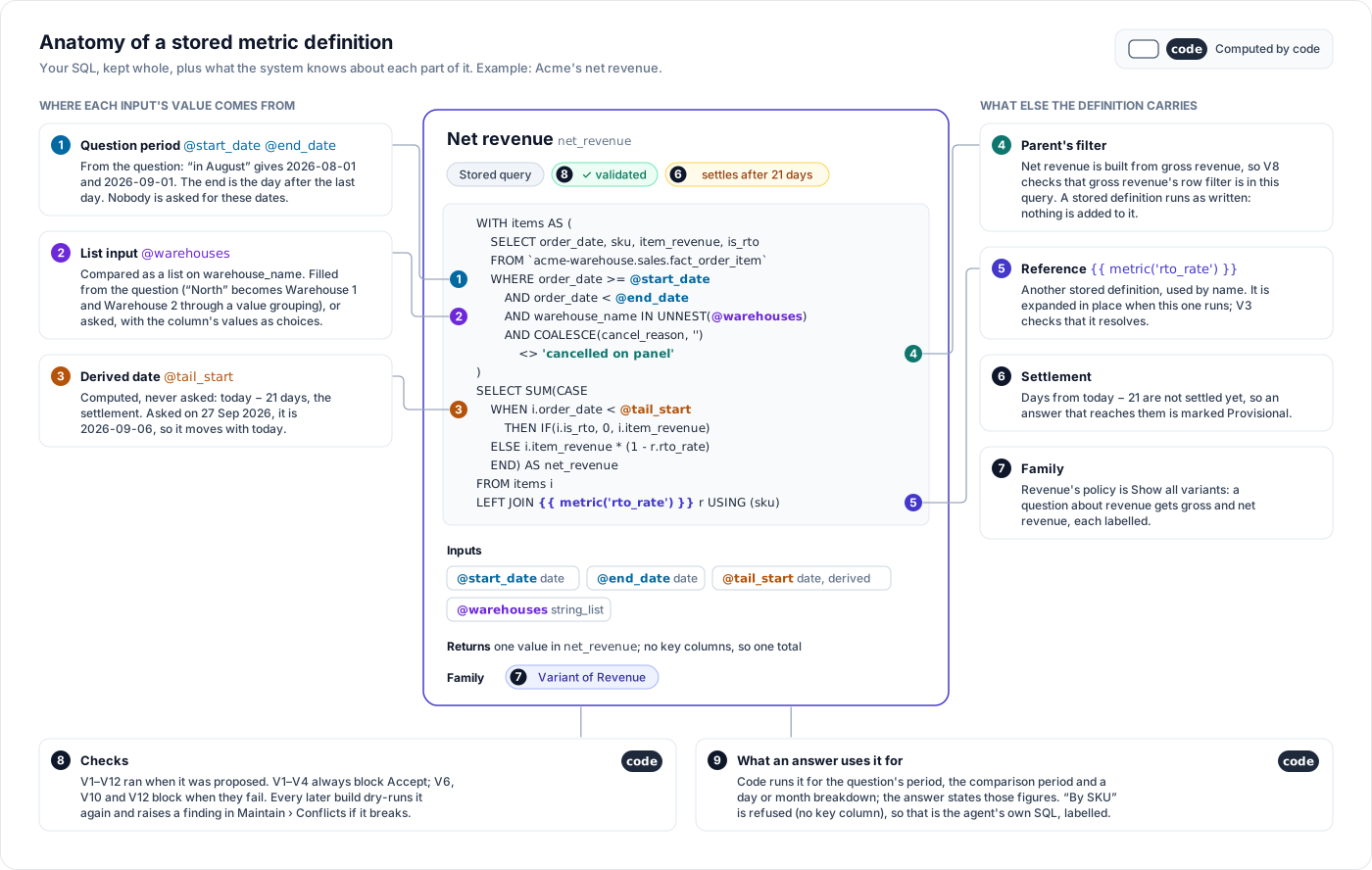
Find your metrics
Open Ontology › Make › Data. The page has four sub-tabs: Domain, Data, Decisions and Discussions. Metrics and their definitions are on Domain.
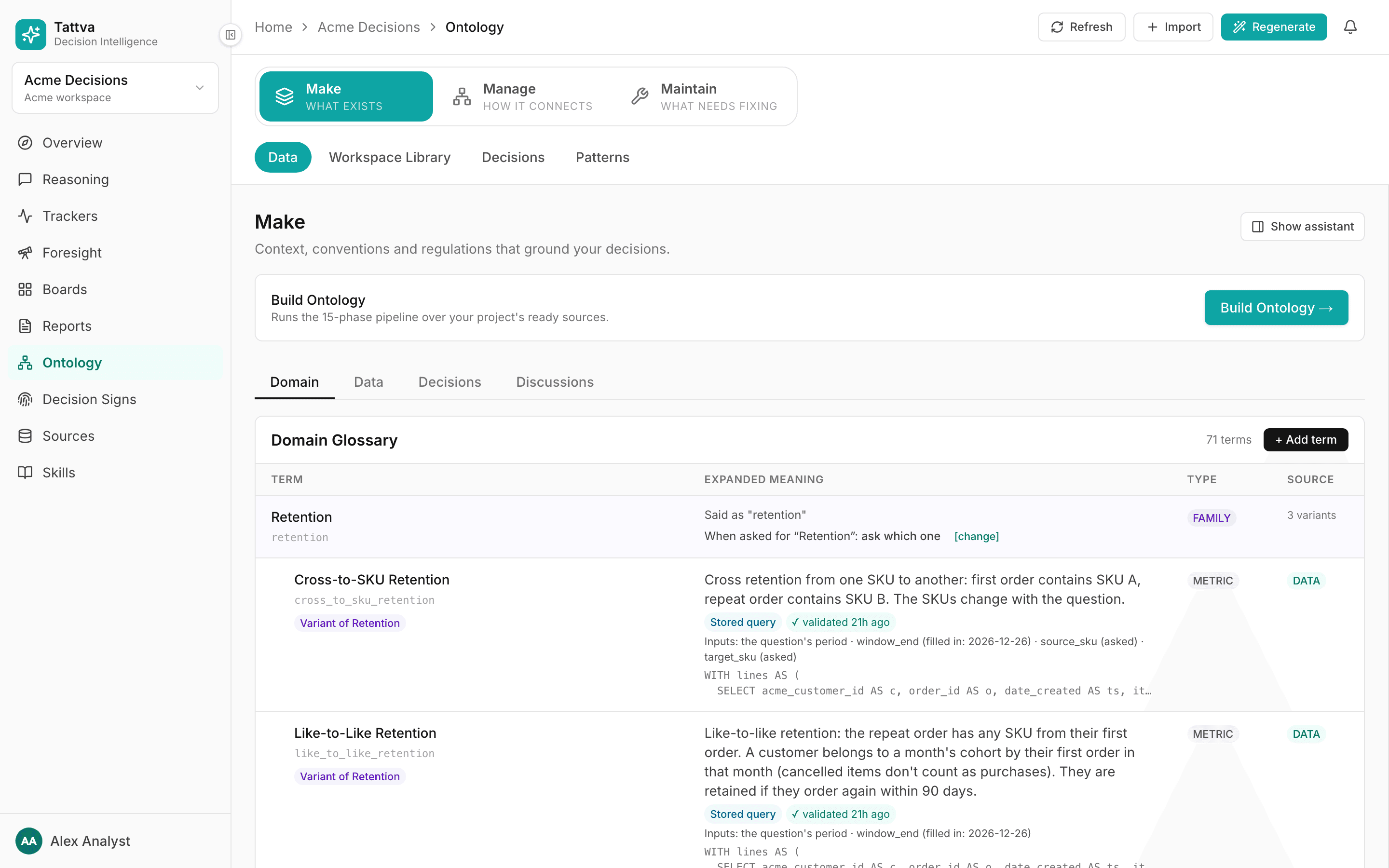
The Domain Glossary table has the columns Term, Expanded meaning, Type, Source and Confidence. Families come first, each followed by its variants; see Families. Other terms and metrics follow, highest confidence first. The table has no search box; use your browser's find (Ctrl+F or ⌘F) with the metric's name or slug.
Read a metric row
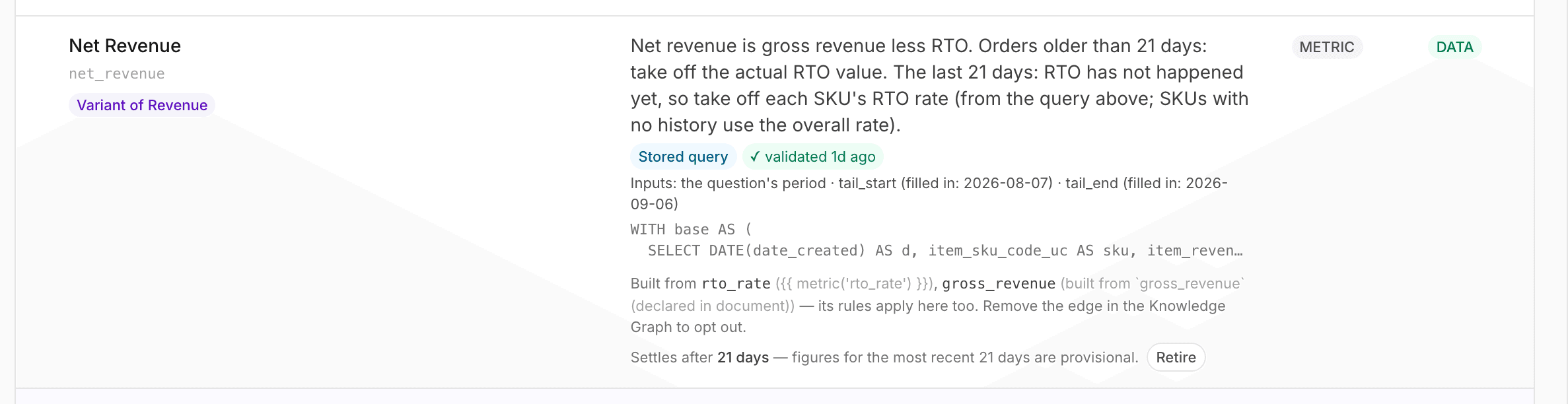
Under the metric's meaning, a row of chips tells you what kind of metric it is and whether it can be trusted.
| Chip | Meaning |
|---|---|
| Stored query | A definition from your document, stored as your query |
| Drafted from prose | A definition Tattva wrote from your prose. Hover: "Drafted from the document's prose — never executed until accepted". Read its SQL with extra care. |
| Formula | A metric Tattva built from columns, not from your query |
| ✓ validated 3h ago | Every blocking check passed. Hover for the time it was validated. |
| ⚠ failed: check | A check failed. Hover for the evidence. Open the Definition tab. |
| ⚠ not validated | A stored query with no validation on record |
| per sku | The key columns: the definition returns one row per SKU, so answers can break it down by SKU |
Below the chips, Inputs: lists each input and where its value comes from, separated by "·":
- the question's period: the start and end dates.
- name (from the question): a value named in the question, such as a warehouse.
- name (asked): a value the user is asked for.
- name (filled in: 2026-09-05): a date code computes. It reads "unavailable — no settlement window" when a date counts from the unsettled days but the metric has no settlement.
The start of the metric's SQL is shown beneath; click it to open the full text. If the metric is a variant in a family, a Variant of chip sits under its name.
On the right:
- Definition → opens the metric's drawer on its Definition tab. A formula metric shows Details → instead. Stored definitions from the Workspace Library show Definition → too, and each metric is listed once: a Library metric the project also has as its own shows only the project's row.
- Edit on Data tab → takes you to the Data sub-tab, where formula metrics are edited. It is not shown for stored definitions.
The Definition tab
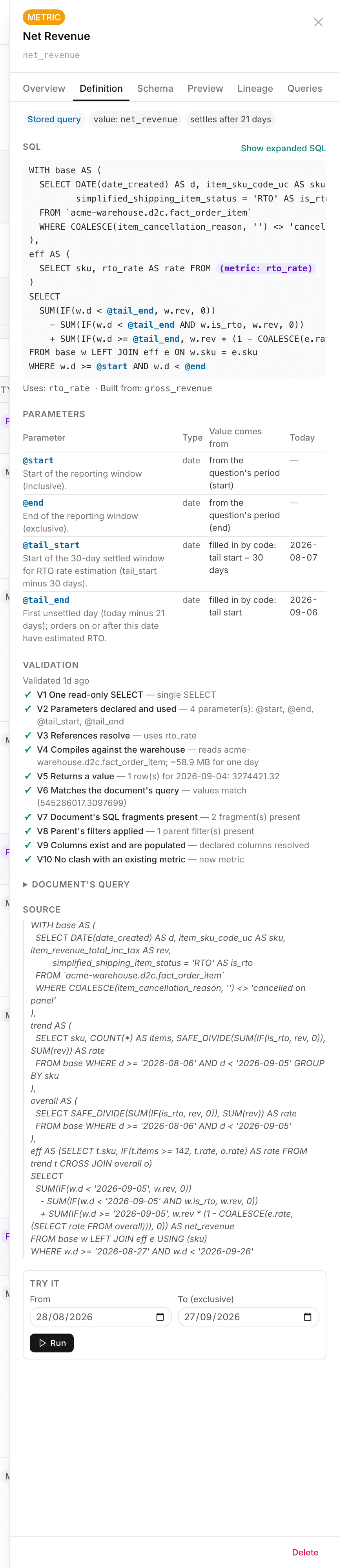
The tab appears only for stored definitions. Open it from Definition → on the Domain tab, or from Definition → in Make › Data › Data › Metrics; both open the same drawer. The drawer's footer also has a Delete button, but do not use it to remove a metric; see Remove a metric you defined.
A Workspace Library definition opened from another project is read-only there: you can read its SQL, parameters and validation, and Available from shows its date with "open it from the Library project to change this date". Change it from the Workspace Library project.
From top to bottom:
- Chips: Stored query or Drafted from prose, value: the value column, per the key columns, and settles after N days.
- SQL: the stored query, with inputs shown as
@name. If it refers to other metrics, click Show expanded SQL to see Expanded SQL (as it runs), and Show as written to go back. "⚠ Cannot expand: …" means a referenced metric cannot be found. Uses: and Built from: list the metrics it depends on. - Parameters: one row per input.
| Column | Shows |
|---|---|
| Parameter | The input's name, its description, and "compared with" a column for a list input |
| Type | date, string, int, float or list |
| Value comes from | For example "from the question's period (start)", "the day after the period + 90 days", "filled in by code: tail start", "from the question", "asked from the user" |
| Today | What a code-filled date is today. "depends on the question" for a date computed from the period; "—" for the period's own start and end, and for values the question supplies. |
The literal your document used for each input (Document had) is shown on the review card, not here.
- Available from: the first date this metric's figures are valid from, for example 1 Apr 2025 for a P&L that starts then. Pick a date and click Save, or click Use earliest date in the data (…) to take the earliest date in the definition's event-time column, then Save. Clear removes it. When set, a question whose period starts earlier is told the metric is not available before that date for the earlier part; the rest of the period is answered. Saving needs Ontology Admin or above, works only on the project's own metric, and is recorded in the audit log. See Answer scope.
- Validation: the V1–V12 checklist from review, with "⚠ Failed: check" above it if a blocking check failed. See Review what Tattva proposes. The definition's engine is recorded from the check that ran it: a definition that passed V4 on BigQuery is a BigQuery query, whether or not its table names are quoted with backticks. Answers refuse to run a stored definition only when it is a query for an uploaded file's engine.
- Document's query: your original query, collapsed, when it differs from the stored one.
- Source: the section of your document it came from, quoted.
- Try it: below.
Try it
Run a definition for dates you choose and compare it with your own number. Try it uses the same executor as answers and trackers, so what you see here is what an answer computes.
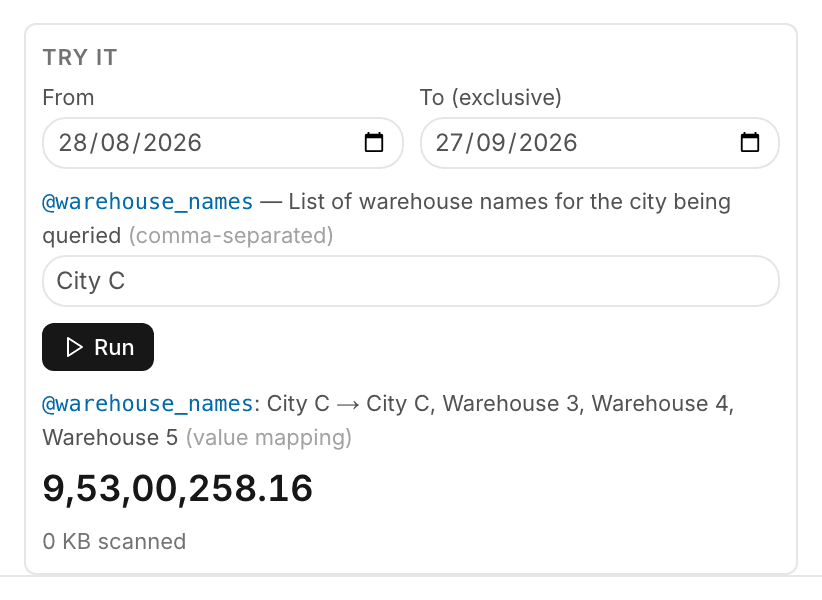
Set From and To (exclusive). They start at the last 30 days, ending today. To is the day after the last day you want. For August 2026, pick 2026-08-01 and 2026-09-01.
Read the line "From / To also fill …". It lists the dates computed from the period, such as a scan end 90 days after it. You are not asked for them.
Fill in any other input. It starts at the input's default, if it has one. A list input takes values separated by commas, for example Warehouse 1, Warehouse 2.
Click Run.
The result is a single value, or a table of key columns and values, followed by how much was scanned (for example "12.4 MB scanned"). Numbers use Indian digit grouping, for example 12,34,567.89. A table shows at most 50 rows ("first 50 rows"). "No rows for this window." means the query returned nothing. A label you grouped shows how it was widened, for example @warehouses: Warehouse 1 → WH1_NORTH, Warehouse 1 (old) (value mapping). A run that would scan more than 5 GiB is refused, and an error appears in red.
Check against a number you trust
Pick the dates of a report you already have and compare. If the figures differ, open Document's query and Parameters and look for a date or value that was turned into the wrong input.
Settlement, provisional and incomplete
A metric that settles after N days keeps changing for N days after the fact: RTO, returns, refunds. Its row says "Settles after 21 days — figures for the most recent 21 days are provisional."
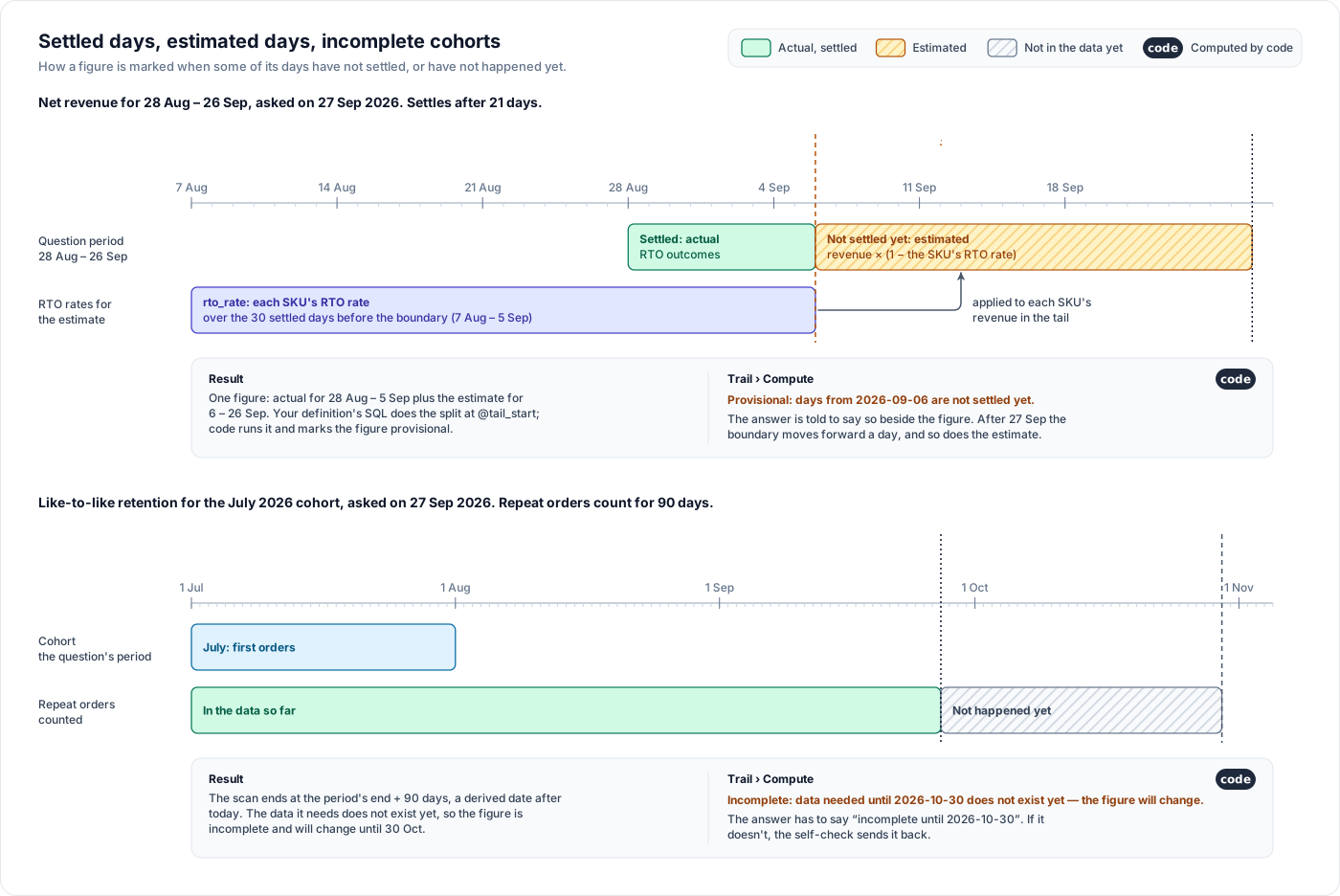
Take the example document's net revenue, which settles after 21 days, asked for "the last 30 days" on 26 September 2026:
- The period is 27 August to 25 September.
- The first unsettled day is 26 September minus 21 days: 5 September.
- From 27 August to 4 September, the days have settled. Your query takes out the items that actually went RTO.
- From 5 September to 25 September, they have not. Your query takes out each SKU's RTO rate over the 30 settled days before 5 September, as an estimate.
- Code marks the figure provisional. The Trail's Compute card shows "Provisional: days from 2026-09-05 are not settled yet.", and the answer must say so beside the figure.
A period that ends before the first unsettled day is not marked.
Incomplete is the other mark. A metric that looks past its period, such as a repeat rate "within 90 days", cannot be final until those days have passed. For the August 2026 cohort, that is 90 days after 1 September. Until then, the Compute card shows "Incomplete: data needed until … does not exist yet — the figure will change.", and the answer must say "incomplete until" that date. If an answer leaves the caveat out, code sends it back to be rewritten.
How answers carry these marks: How answers work.
Filters, settlements and rules
Accepted filters, settlements and rules appear on the metric's row, under its SQL.
- Settles after N days — figures for the most recent N days are provisional. Click Retire to remove the settlement. The dialog "Retire metric's settlement period?" warns that answers will no longer treat recent days as provisional. Retire is refused when the stored definition dates its unsettled days from the settlement (an input "filled in by code: tail start", like
rto_rateandnet_revenuein the example document): the definition cannot run without it, so replace the definition instead. A settlement inherited from another metric shows "(inherited from …)" and has no Retire here; retire it on the metric that defines it. - Built from metric — its rules apply here too. The metric inherits the rules of the metric it is built from. To opt out, remove that relationship in the Knowledge Graph.
- A rule box, such as filter · when always, with its condition in words ("window reaches into the unsettled tail", "window is fully settled", "grain is …", "broken down by …") and the filter's
WHEREclause or the replacement formula. Click Retire rule to stop applying it. An inherited rule shows "· inherited from …" and is retired at its source. - A rule that names a metric that does not exist shows ⚠ and "CANNOT BE COMPUTED — … not defined in this workspace."
Retiring is the only change you make here, and it needs the owner, admin or Ontology Admin role. Adding or changing a filter, rule or settlement goes back through Maintain › Review: write it in a new document.
Filters and rules do not change a stored definition
A stored definition runs your query as written. Filters and replacement rules apply only to formula metrics. If a stored definition needs an exclusion, it belongs in its query.
The Data sub-tab
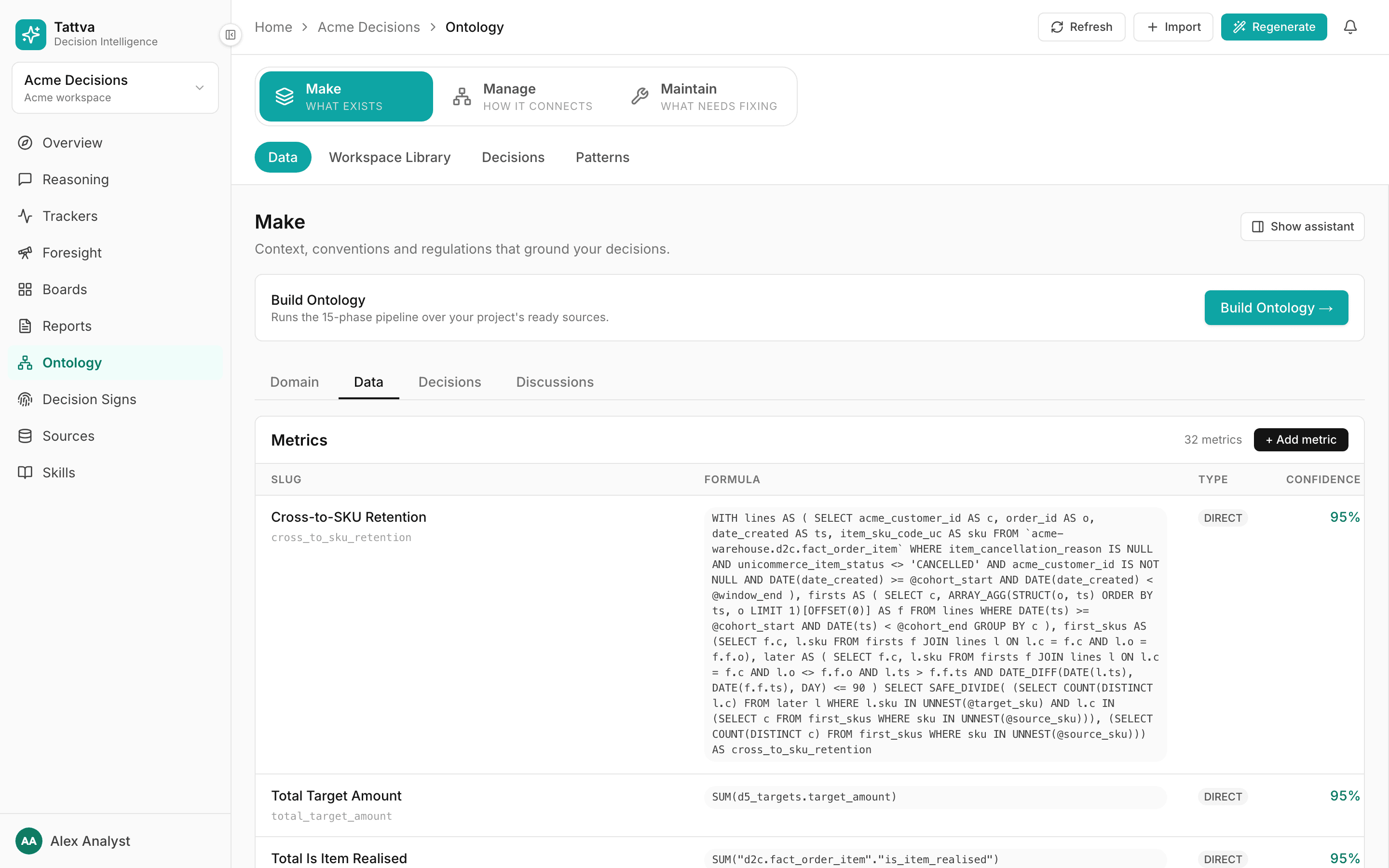
Make › Data › Data has three tables, in this order.
- Metrics: every metric with its Slug, Formula, Type and Confidence. Type is DIRECT for a formula that aggregates columns directly, and DERIVED for one that refers to other metrics (
{…}) or divides withNULLIF. It is a rough label from the formula's text. + Add metric creates a formula metric from columns you name. Hover over a row for Edit, which opens Edit metric formula, and Delete. A stored definition shows Definition → instead of Edit; it opens the metric's drawer on its Definition tab, where Available from is set. There is no search box; use your browser's find. - Detected Conventions: rules Tattva uses to read your data, such as currency and date format, with Convention, Value, Category and Confidence. A detected convention shows the score the build gave it; one you add is saved at 100%, and Edit lets you set its confidence, name and description. A Not answered yet topic's description says what it covers and does not cover; see Answer scope. — means the score was not recorded; the next build re-detects the rule and stores it.
- Fields: per-column semantics from the About-Fields phase: Column, Role, Meaning, Unit / Format, Aggregation, FK hint and Confidence. Click ✎ to edit a column's meaning and role.
no aggregationmarks a column no metric may sum or average.
Change a stored definition through a document
Stored definitions are not edited here. To change one, upload a corrected document and accept the replacement. See Replace a definition.
Remove a metric you defined
Remove a metric, stored definition or formula, from Make › Data › Data.
In Metrics, find the row (use your browser's find), hover over it and click Delete.
Read the dialog: "The metric is removed from the ontology, and later builds will not create it again, under this name or the same formula." Click Remove.
Open Maintain › Review and reject anything left over from the same document for that metric, such as a reusable filter card or entity cards.
Use the Data tab, not the drawer
The Delete button in the metric drawer's footer does not remove the metric. Use Delete on Make › Data › Data.
What stays behind:
- The review record. Deleting the metric does not undo or remove the record that its card was accepted.
- The document. Your uploaded file stays on Sources. A document is read for metrics only once, so it will not propose the metric again unless you ask for it with Read again on next build. Its ✕ (Delete source) on Sources › Upload removes the file and its text, which the agent then no longer finds, and retires the cards from it still waiting in Review.
- The name. Later builds will not generate a formula metric with this name or formula. That applies to the build only: if you later accept a definition of the same name from a new document, it is created again.
Next
Work answer feedback
Read the Not satisfied comments people leave under answers, mark them In review, keep a team note, and turn each into a convention or correction card.
Families
Group metrics that share one word, and decide what an answer does when someone uses that word without saying which metric they mean.