Create a project
How projects work, what to pick in the wizard, and how to set yourself up for good answers.
A project is the unit of work in Tattva. Each project has its own data, its own ontology (the living map of your business), its own history of answered questions and tracked decisions. Most teams end up with one project per business function or one per major initiative.
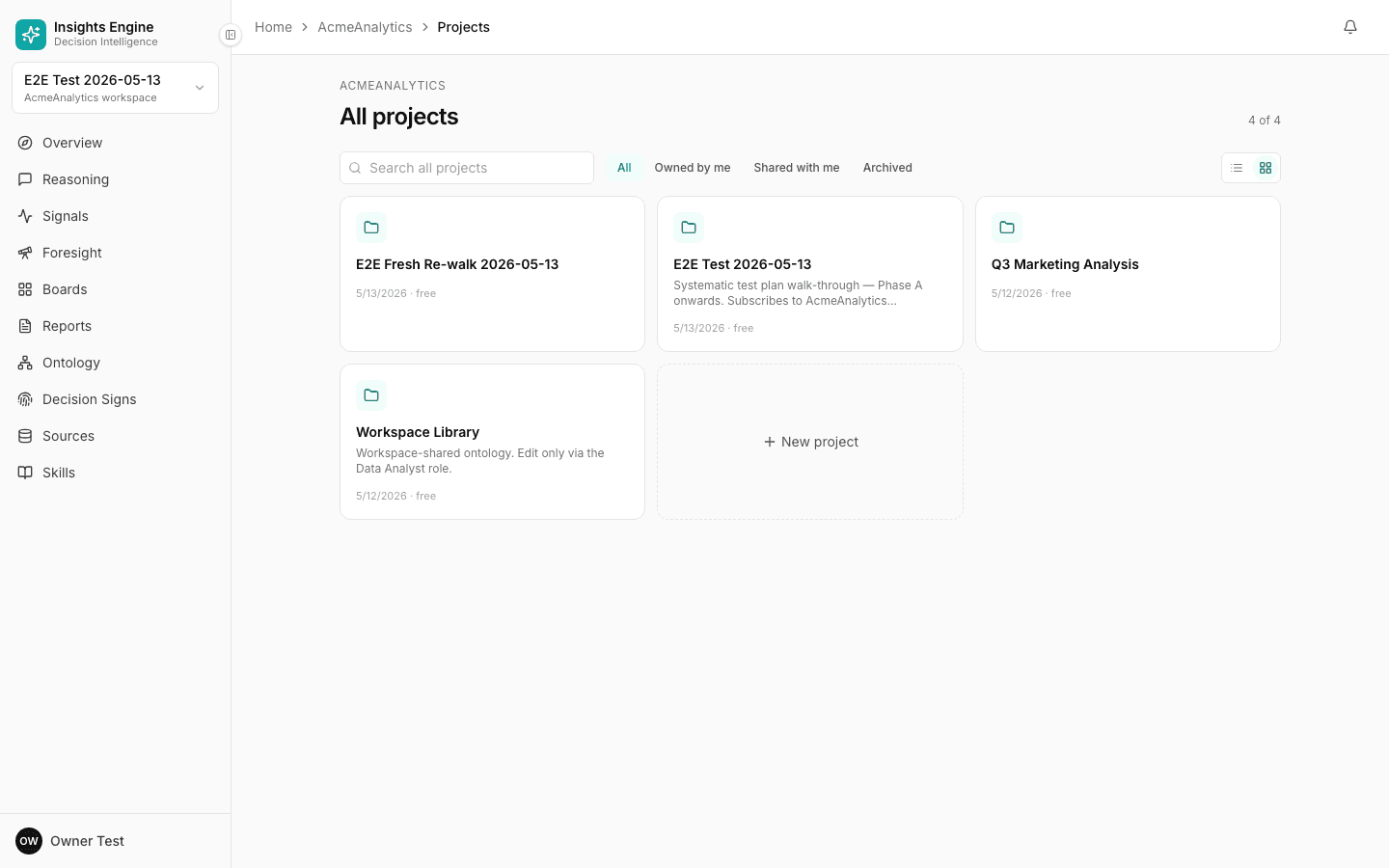
Open the wizard
From the sidebar, click Projects → New project. (If this is your very first time, you'll land on the wizard automatically after sign-in.)
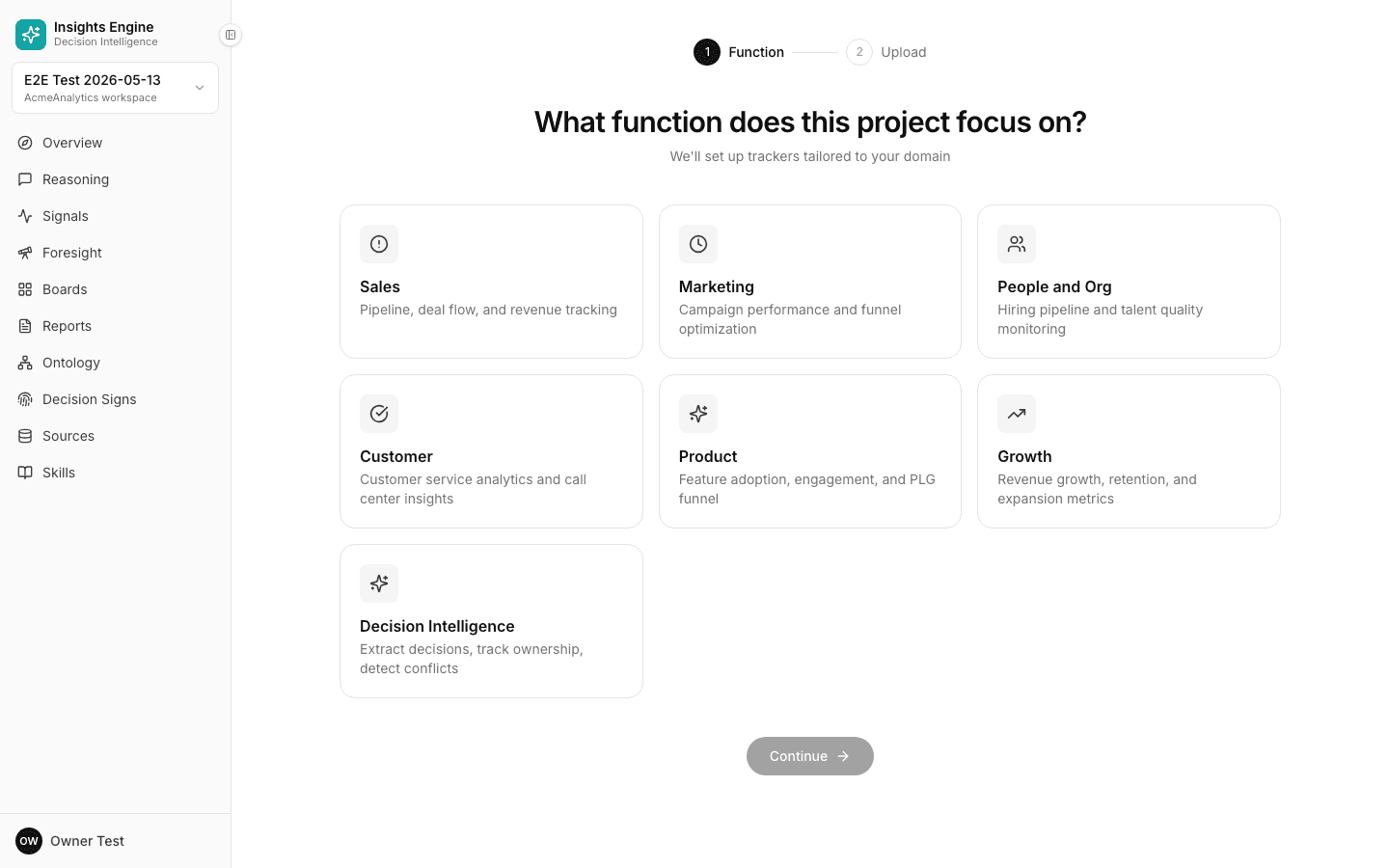
Step 1 — Pick a function
The first thing you choose is the function the project serves. Each function pre-configures the project with the right defaults:
- The personas you'll be answering for (e.g. a Growth project ships with Performance Marketer, Lifecycle Marketer, etc.)
- The reasoning modes that get prioritised (e.g. Attribution and RCA for Growth, Forecasting and Optimization for Sales)
- The kinds of data you'll probably want to upload (a checklist of "things you'll need")
- The suggested questions the system seeds you with
Available functions today:
- Sales — pipeline, conversion, rep performance, win/loss
- Marketing — channel ROAS, attribution, content performance
- Growth — funnel, activation, retention, LTV
- Customer — CSAT, churn, NPS, support quality
- Product — feature adoption, engagement, journey friction
- People & Org — hiring, retention, headcount, performance
- Decision Intelligence — cross-functional strategic decisions
You can change the function later from the project's settings if your scope shifts. Just be aware that suggested questions and defaults will re-seed.
Step 2 — Add data
You don't need everything at once. The platform asks for a starter set and you grow from there.
The "data you'll need" checklist
Each function shows a checklist of the kinds of files it can use — e.g. for Sales: deals export, activity log, rep roster. Each row tells you what tools typically export that data, and example filenames so you know what to look for.
Drag, drop, done
Drop CSV or XLSX files anywhere on the page. They upload in parallel and you can keep adding while earlier ones process.
Use the samples
If you don't have data handy, toggle Try with sample data before clicking Create. The platform pre-loads representative files for your function so you can explore the full experience right away. You can mix samples and your own uploads — there's no penalty for switching later.
After Create
Once you click Create project, the platform begins processing each file. You'll see live per-file status: queued → uploading → parsing → analyzing → indexing → ready. When everything is ready, the project unlocks and the Reasoning composer becomes useful.
Workspaces and projects
A workspace is your company's container. Inside it you can have many projects — typically one per function or per initiative. Members of the workspace see all projects unless permissions are scoped.
Tips
- Start narrow. One function, one focused dataset, a few questions. You can always create more projects.
- Use real names for files —
2026_q1_deals.csvis more useful thandata1.csvbecause column-mapping uses filename hints. - Re-upload anytime. If your data refreshes weekly, upload the new version — the platform versions sources and tracks the diff.
- Pick the function that matches the question, not the team. A growth-marketer asking about churn might still want the Customer function.
Next: Connect sources.