Ask your first question
How to phrase your question, what the four-phase answer looks like, and how to read the result.
Now the fun part. With at least one ready source in your project, head to Reasoning in the sidebar.
The composer
The Reasoning page has one big text box and a list of suggested questions below it. The suggestions are tailored to the data you've loaded — they reference real column names and segments from your files, not generic templates.
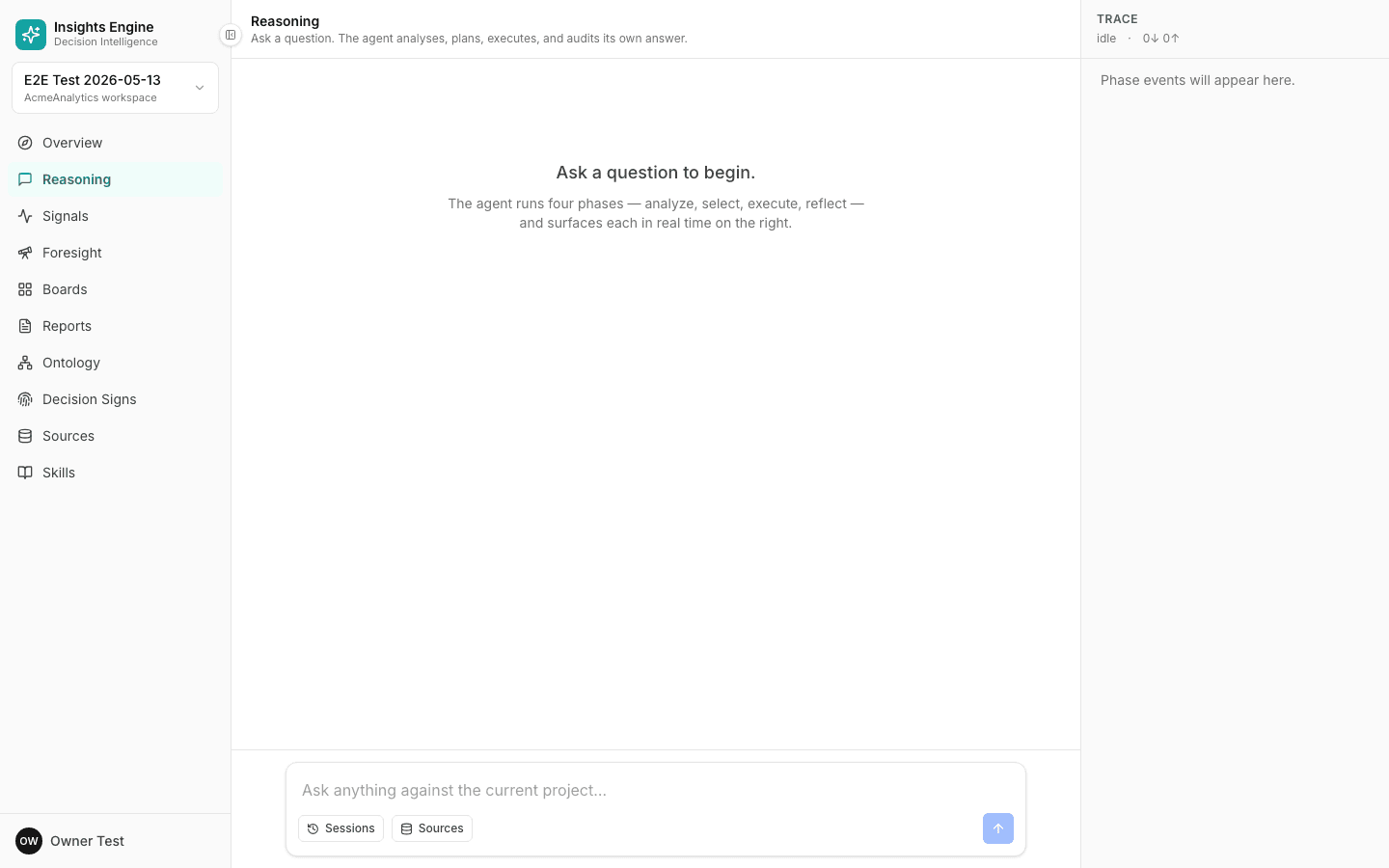
You can either click a suggestion or type your own question. Phrase it like you'd ask a colleague — full sentences are fine; you don't need to use SQL or column names.
Good examples:
- "Which channels drove the most new customers in Q1, and what was the CAC?"
- "Why did checkout conversion dip last week?"
- "What's the forecast for D2C revenue next month if we hold spend flat?"
Pick a thinking depth (optional)
Above the composer there's a thinking-depth toggle: Off, Low, Medium, High. Higher depths mean the platform takes longer but reasons more carefully and double-checks itself. Default is Medium and is right for most questions. Use High for high-stakes calls; use Off when you just want a fast lookup.
The four phases
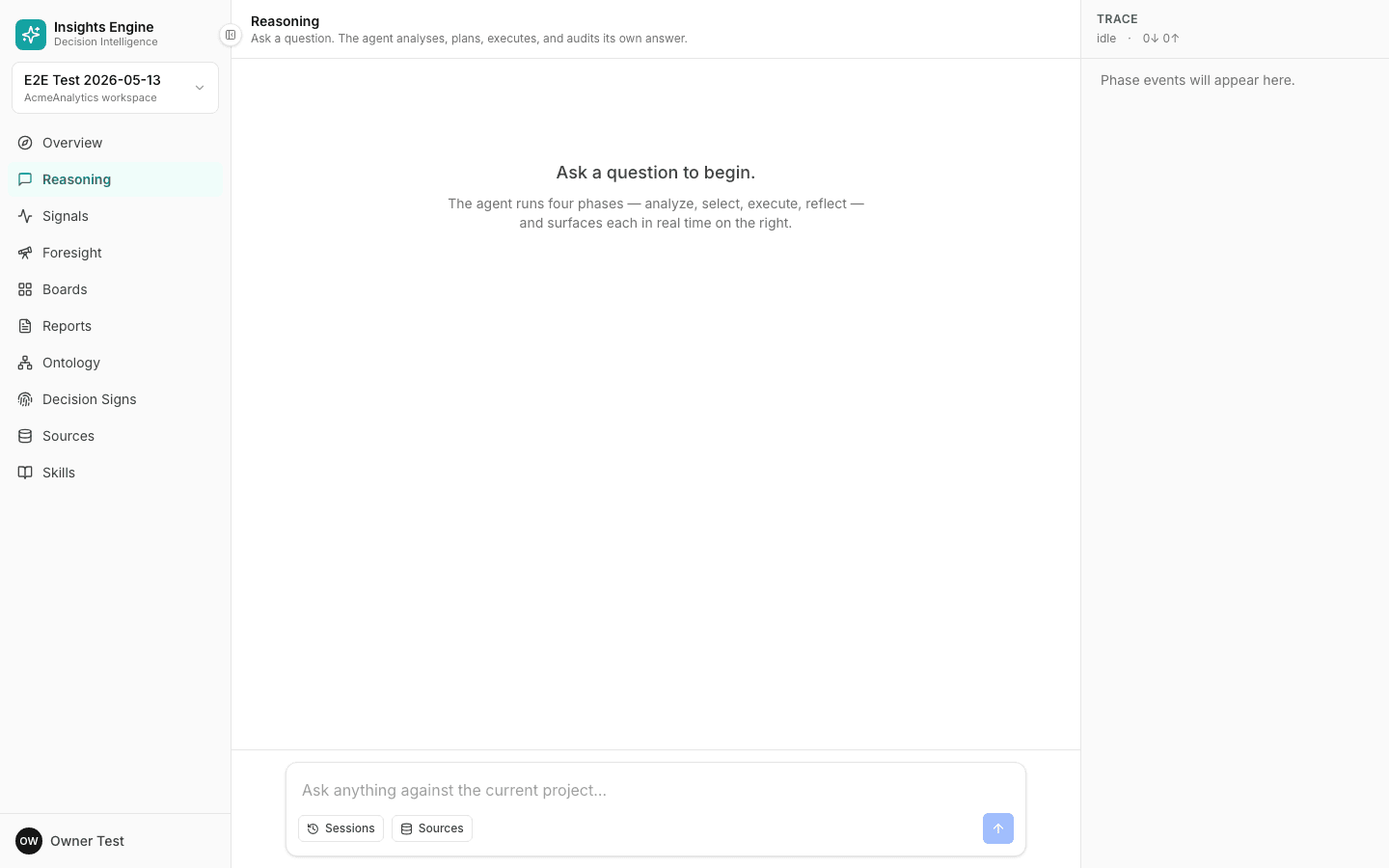
When you submit, the answer builds in four phases, visible in the rail on the right:
- Analyze — the platform restates what it understands you're asking, including which entities, time windows and metrics you care about. If the question is ambiguous, it asks you to clarify here.
- Select — it picks an approach: a quick lookup, a single tool, a chain of tools, or a specialist (RCA, forecast, attribution, etc.).
- Execute — it runs the chosen plan, fetching data, computing intermediate values, and assembling a draft answer.
- Reflect — it cross-checks the draft against the data, flags assumptions, and tightens the conclusion.
Reading the answer
The answer pane shows:
- A direct answer at the top — usually 1–3 sentences.
- Supporting evidence below — the numbers, segments, and rows that back the answer.
- Assumptions — anything the platform had to assume to give you a clean answer.
- A tool trail — every metric calculation or query that was run, expandable so you can verify.
Every claim in the answer is cited to a source. Click a citation to jump to the underlying row or query.
What if it doesn't know?
The platform will say so out loud. You might see:
- "I need to clarify" — the question has more than one valid reading. Pick one.
- "I don't have data for this" — the columns or rows needed aren't in any connected source. The platform will tell you what's missing.
- "Low confidence" — it has an answer but the evidence is thin. Use higher thinking depth or add more data.
This is intentional. The platform refuses to guess.
Next steps
- Save it — turn a useful answer into a report or a recurring tracker.
- Drill in — click any citation or any tool in the trail.
- Re-ask — refine your question; previous answers stay in the run history.
See the full Ask a question workflow for the deeper version.