Trackers (Signals)
Recurring questions on a schedule. Each run is classified and the history preserved — turning a one-off insight into a standing signal.
A tracker is a saved question that runs on a schedule. Each run is classified and the history is preserved so you can see trends, drift, and threshold breaks over time.
Terminology note. The sidebar calls this surface Signals but the page itself, the breadcrumb, and the create button say Trackers. They're the same thing — "Trackers" is the underlying primitive; "Signals" is what they surface in the Overview's Triage lanes.
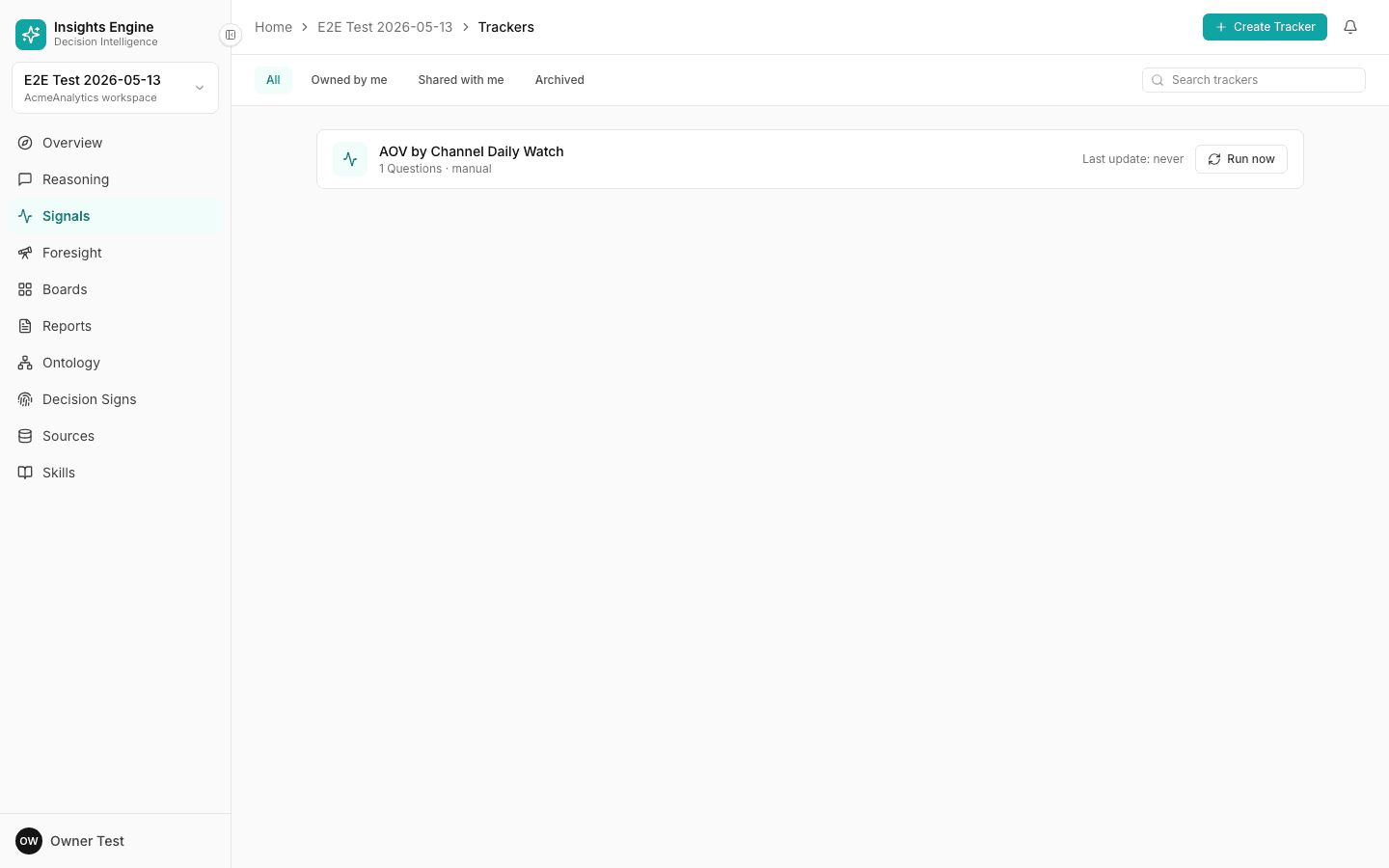
What's on the Signals / Trackers screen
Sidebar → Signals (route: /tracker). Page title: Trackers.
- + Create Tracker button (top-right).
- Tabs: All / Owned by me / Shared with me / Archived.
- Search trackers input (right of tabs).
- Tracker rows. Each row shows the tracker's name, question count, cadence, and last-update time. Right side: Run now button.
- Example row: "Test — 2 Questions · hourly — Last update: 21 min ago — Run now"
What a tracker looks like
Each tracker has:
- A name — e.g. "Weekly D2C CAC by channel"
- One or more questions to run
- A cadence — hourly, daily, weekly, or manual
- A last-run time and next-run time
- A run history with the classification of each result
Creating a tracker
Two ways:
- From scratch. Sidebar → Signals → + Create Tracker. Pick a cadence, write the question(s), save.
- From a Reasoning answer. When you get a good answer, click Save as tracker in the answer toolbar. The question, settings and time window pre-fill.
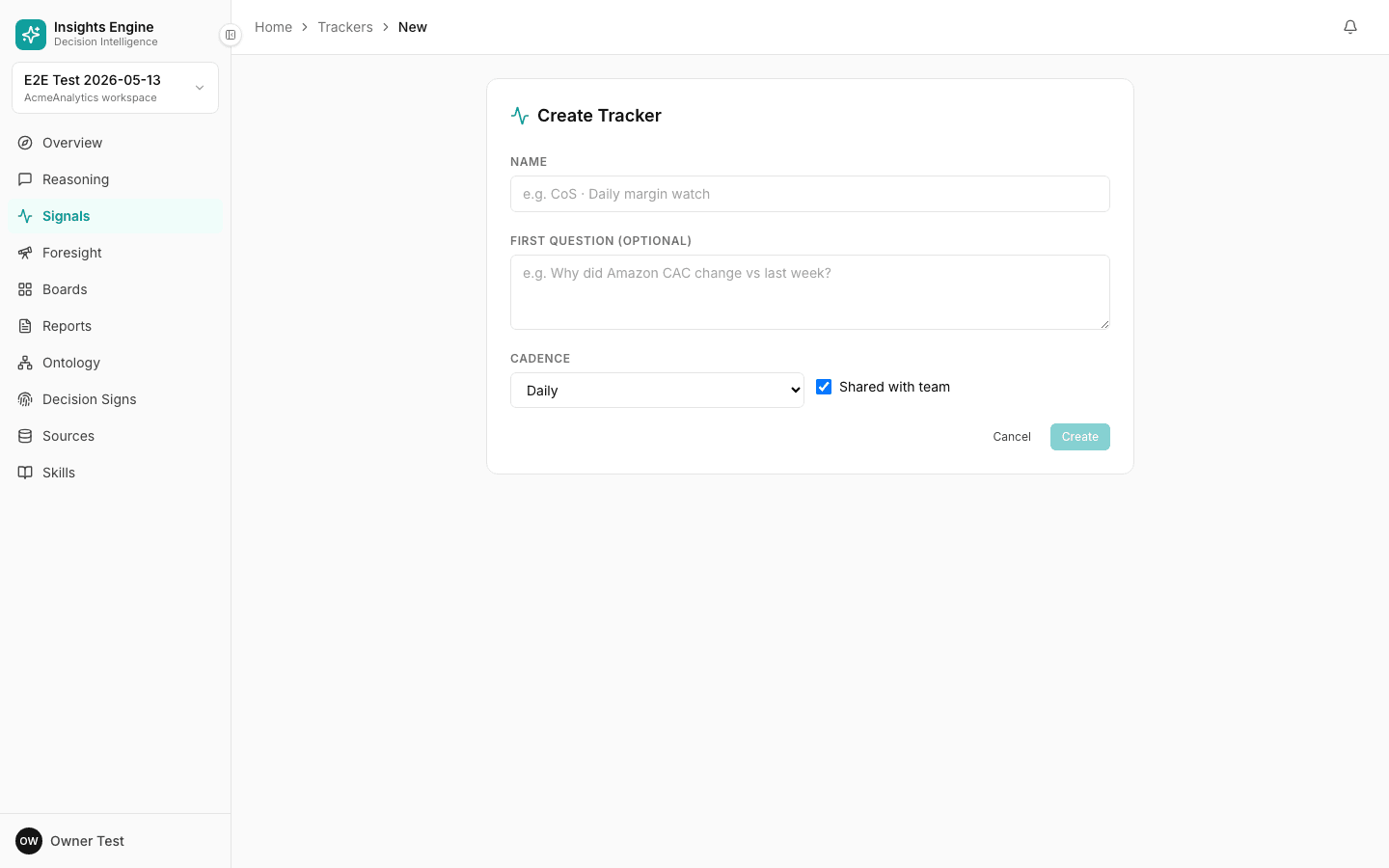
Cadences
- Hourly — for fast-moving operational metrics.
- Daily — most trackers live here.
- Weekly — for slower-trending KPIs.
- Manual — never auto-runs; you trigger it from the Run now button.
Tracker detail page
The detail page shows:
What's on the Tracker detail screen
Click any tracker row to open /tracker/<id>. The page is a master-detail layout with three tabs and right-pane drill-in.
- Breadcrumb — Home › Project › Trackers › Tracker name.
- Top-right actions — 🔄 Run now + + Add Question.
- Tabs:
- Questions — the tracked questions in this tracker and their current state. Default view.
- History — chronological log of every run.
- Delivery — notification routing settings for this tracker.
Questions tab
Two-pane layout:
- Tracked Questions list (left) — counter at top (e.g. "Tracked Questions · 2"). Each card shows:
- Status icon — green check (ALL CLEAR), amber (WATCH), red (ALERT), grey (NO RUNS).
- Question text + an inline description or skipped reason.
- Bullet hints ("Save this question to start tracking deltas", "Cron runs once per cadence and stores a delta summary", "Click any question to inspect the latest run").
- Footer row: cadence (
hourly), rule chip (rule: relative delta,rule: absolute, orno rule), next-run countdown (e.g. "next in 37m"), and an Edit button.
- Question detail pane (right) — appears when you click a question:
- Classification badge (ALL CLEAR / WATCH / ALERT) + the question.
- Description of the latest run result (or the skip message).
- Continue in chat button (top-right) — jumps to Reasoning pre-loaded with the question.
- KEY TAKEAWAYS card — bullet summary of the latest run.
History tab
Every run, ordered by time. For each: classification, headline number, deviation vs baseline, link to the underlying answer.
Delivery tab
Per-tracker notification overrides (which channels, what severity). See Notifications for the workspace-level defaults this inherits from.
Goals and link roles
You can link a tracker to a goal. When you do, you pick a link role that tells the platform how this tracker relates to the goal:
- Primary — this tracker directly measures the goal.
- Leading indicator — this moves before the goal does.
- Lagging indicator — this moves after the goal does.
- Guardrail — this protects against a downside while you chase the goal.
Tracker results on a goal page are then ordered and contextualised by these roles.
Tips
- Start with five trackers. Resist the urge to add fifty — alerts only mean something if you read them.
- Use leading indicators. A guardrail + a leading indicator + the primary metric is usually the right kit.
- Share trackers, don't copy them. Two teams maintaining the same tracker drift; one shared tracker stays consistent.
- Archive aggressively. Trackers you don't read are noise.