Maintain the ontology
Use Health, Conflicts, Review, Promotion and Versions to keep the ontology correct, and follow a weekly routine.
Ontology › Maintain ("WHAT NEEDS FIXING") has five tabs: Health, Conflicts, Review, Promotion and Versions. Make is where things are defined and Manage is where they connect. Maintain is where you find out what is wrong and fix it.
Health
Health answers one question: how ready is this ontology to answer questions? It has no buttons. It changes when you fix things elsewhere and rebuild.
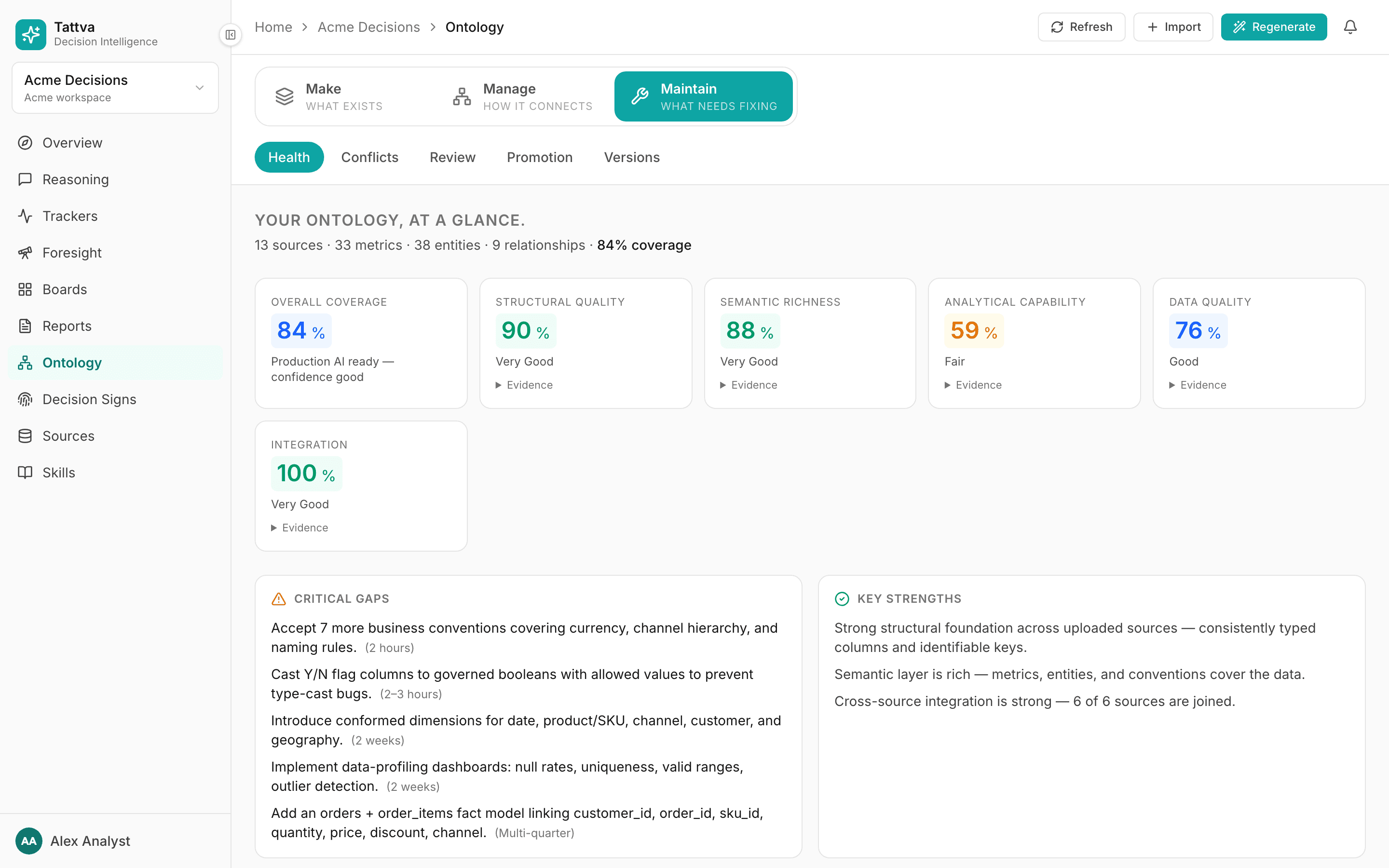
| Part | What it tells you |
|---|---|
| Headline | "Your ontology, at a glance.", with counts of sources, metrics, entities and relationships, and overall coverage |
| Overall coverage | A single score, a rating (Production AI ready, Analytics ready, Foundational, Needs work, Not ready) and a confidence |
| Dimension cards | Structural Quality, Semantic Richness, Analytical Capability, Data Quality and Integration, each scored Very Good / Good / Fair / Poor. Open Evidence on a card to see why it scored that way |
| Tier strip | Current tier: and Next:, with a progress bar. Blocking: names the scores that keep you from the next tier |
| Critical Gaps | The most useful fixes to make next |
| Key Strengths / Weak spots | What is scoring well, and what is not |
| Uncovered columns | Columns with no meaning recorded. Annotating them is the quickest way to raise the Structural and Semantic scores |
| Capabilities | Which kinds of question the ontology supports: Basic Queries, Advanced Queries, Forecasting, Decision Explainability |
Integration carries the most weight. It measures how much of your data is joined to the rest rather than sitting in isolated tables. A low Integration score usually means relationships are missing; see Knowledge graph.
Conflicts
Conflicts lists problems the build found. Each conflict is a card with a category, a severity (LOW, MEDIUM, HIGH), a confidence, the check that found it (source: …), a description and a Proposed Fix.
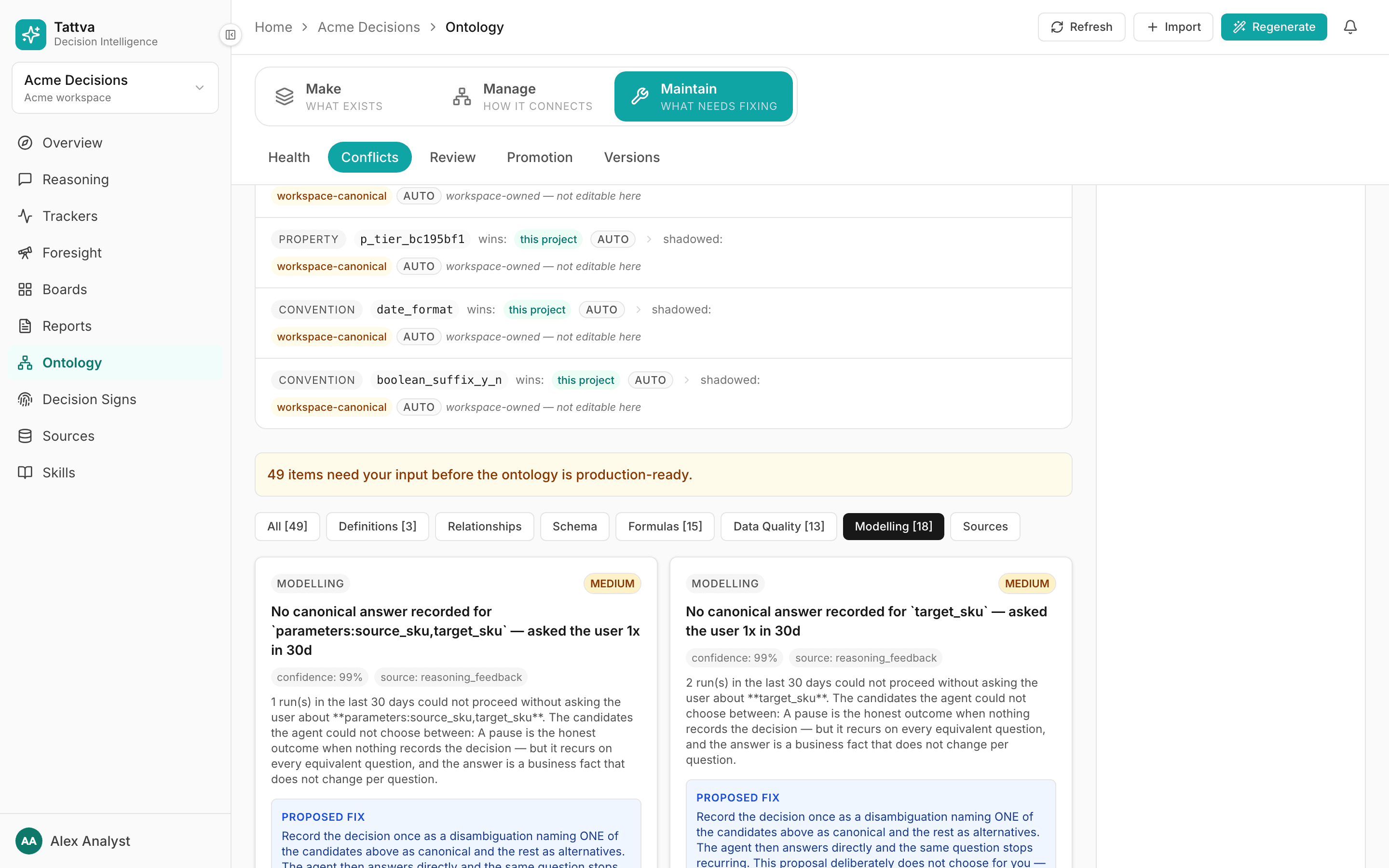
LOW conflicts are advisories and are hidden by default. Click Show N low-severity advisories to list them, and Hide to put them away again. When only advisories are open, the tab reads "Nothing that needs your input" with the count hidden. All clear means nothing is open at all. Advisories never appear in answers. Typical advisories are two metrics that compute the same thing, or a join the build no longer derives.
A link from an answer opens this tab with the conflict it names outlined and scrolled into view.
Use the filter pills to narrow the list:
| Pill | What it covers |
|---|---|
| All | Every open conflict |
| Definitions | A metric or term with no definition, a metric that diverges from the workspace version, two metrics that compute the same thing, metric family problems, a dashboard whose metrics changed (below) |
| Relationships | A join that is blocked, or a relationship whose join column or endpoint is missing |
| Schema | A mapping to a column that no longer exists, a meaning with no column, a table entity with no source behind it |
| Formulas | A SUM over a column that is already aggregated, a metric with no formula, a division without NULLIF, unknown columns in a formula metric (a stored definition is checked by its dry run instead, under Data Quality) |
| Data Quality | Source data-quality checks, an empty column, a stored definition that no longer runs, values that do not match across a join |
| Modelling | Findings about how the ontology is modelled (below) |
| Sources | Source-level problems |
Modelling findings
Modelling findings come from three checks. Most need a decision from you and have no automatic fix. The exception is a reasoning_feedback finding about a join, which proposes deleting the link.
source: measure_hygiene: a concept labelled as a metric that computes nothing, a measure that contradicts its column's aggregation hint, or several measures that compute the same thing.source: stale_artefact: a join the build no longer derives. Compare it with the joins the build did derive. Delete it if it is a duplicate or a stale direction.source: reasoning_feedback: problems found while answering questions. For example, a join marked verified that cannot run, or whose two columns share no values; a concept bound to no column; queries against a table that keep failing; or a field users are asked about repeatedly although the ontology already records it. The proposed fix says what to do: often add a value grouping (see Inputs and groupings) or delete the relationship. A finding about a join has Open link →, which opens that edge's drawer in the Knowledge Graph with the measured value overlap of each key pair, and Delete link.
A dashboard whose metrics changed
source: dashboard_metrics (category Definitions, MEDIUM): "Dashboard “title”: a metric it shows changed". A metric a registered dashboard shows was renamed, retired, or had its definition replaced since the dashboard was last confirmed; the description lists each change, for example "net_revenue's definition was replaced". From that moment questions are no longer sent to the dashboard.
Open Make › Dashboards. If the dashboard still shows what the metrics mean now, click Still matches on it; otherwise edit or archive it. Any of these resumes routing (or ends it, for an archive) and resolves the finding straight away. A Workspace Library dashboard's finding is raised and settled in the Library. See Dashboards.
Acting on a conflict
- Resolve → applies the proposed fix. It appears only when the conflict has one. Approving a value grouping this way needs the ontology admin, admin or owner role, and so does any fix that deletes something.
- Delete link appears instead of Resolve → when the fix is to delete a relationship. Click it, then Confirm delete. It removes the link and the same join stored in the opposite direction, and a later build does not recreate it. It needs the owner, admin or ontology admin role; for other members the button is disabled.
- Mark fixed → closes a conflict you fixed yourself, for example by editing a source.
- Dismiss closes it without a change. There is no confirmation.
- Delete what it refers to. If you delete every metric, term, source or relationship a conflict names, the next build resolves the conflict.
- Apply all auto-fixes (N) applies every fix in the current filter. It deletes orphan metrics, glossary terms and relationships, and cannot be undone in bulk. Read the list first. Without the owner, admin or ontology admin role, fixes that delete are skipped.
Same-slug across origins
When the same name (slug) exists in more than one place, for example in this project and in the workspace, the section Same-slug across origins appears above the list. Each row shows which one wins: and which one is shadowed:. The higher-precedence origin wins when answers look it up.
Decide whether to keep both. To retire the shadowed one, click Deprecate on it. It stops appearing in retrieval. You cannot deprecate a workspace-owned item from a project: the row says "workspace-owned — not editable here".
Review
Review is the queue of proposals from the build and from the metric documents you upload, and of the convention and correction cards your team makes from answer feedback. Each proposal waits for Accept, Defer or Reject. Nothing is applied until you accept it. Resolved keeps the history of every decision, and My corrections lists the comments you left under answers. See Review queue for the cards and checks.
In every project, deciding in Review needs the owner, admin or ontology admin role; members and viewers see the queue read-only.
Feedback
Feedback lists the Not satisfied comments people leave under answers, filtered by New, In review, Fixed and Not changed. Owners, admins and ontology admins get a bell notice for each new one (and a Slack post when the project has a webhook). Mark a comment In review, keep a team note the author never sees, and make the fix in one click with Create convention or Create correction; the comment moves to Fixed when that card is accepted in Review. See Work answer feedback.
Promotion
Promotion ("Promotion Inbox") lists project sources waiting to become workspace-trusted, so every project in the workspace can use them. Each request shows the source, the project it came from, who asked and why.
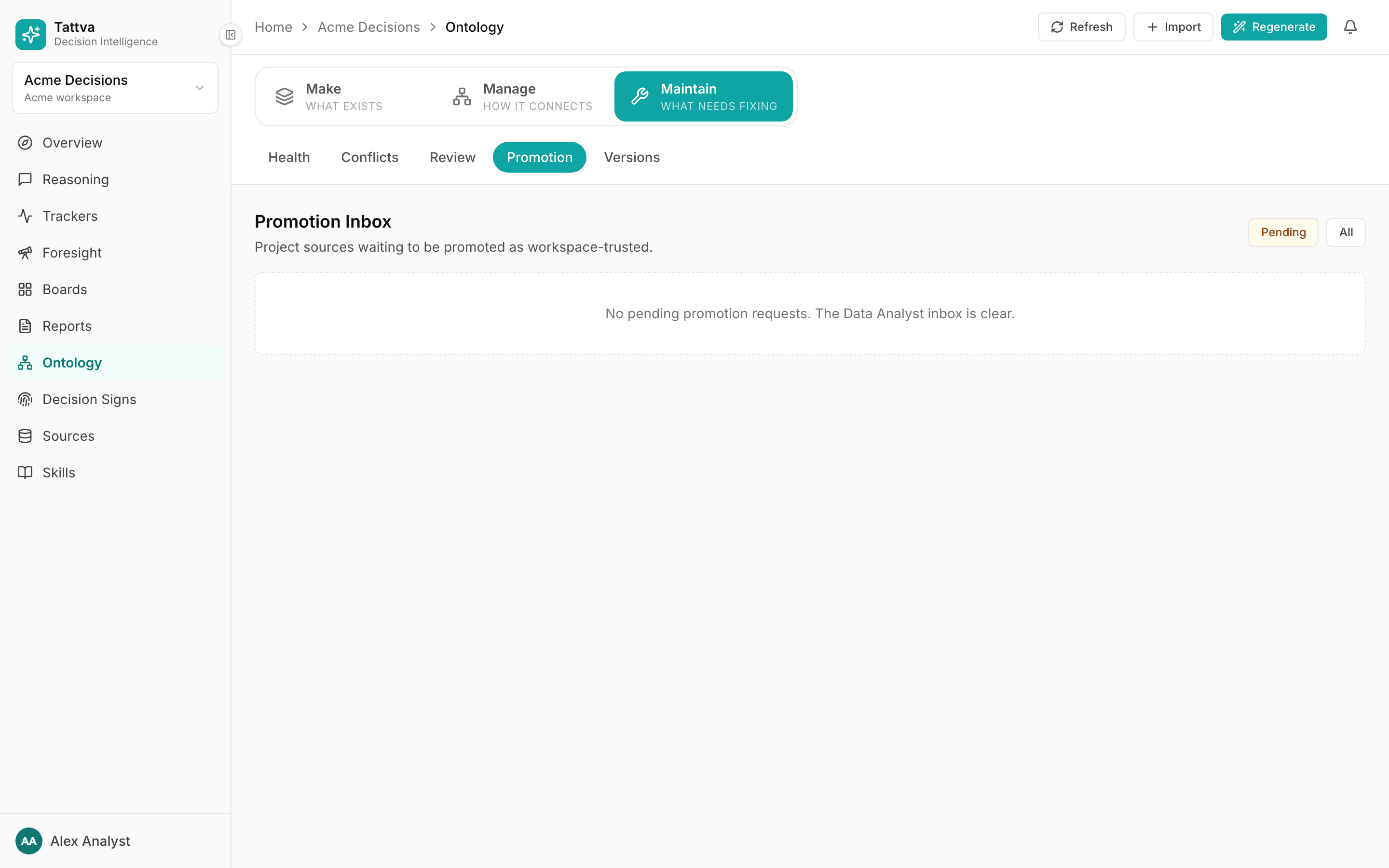
- Approve opens a form for optional notes, then Confirm approve.
- Reject needs notes that explain what to fix, then Confirm reject.
- Switch between Pending and All to see past decisions.
Approving or rejecting needs the admin, owner or ontology admin role.
Versions
Versions lists ontology snapshots, one per branch merge or revert, newest first. The current one is marked head.
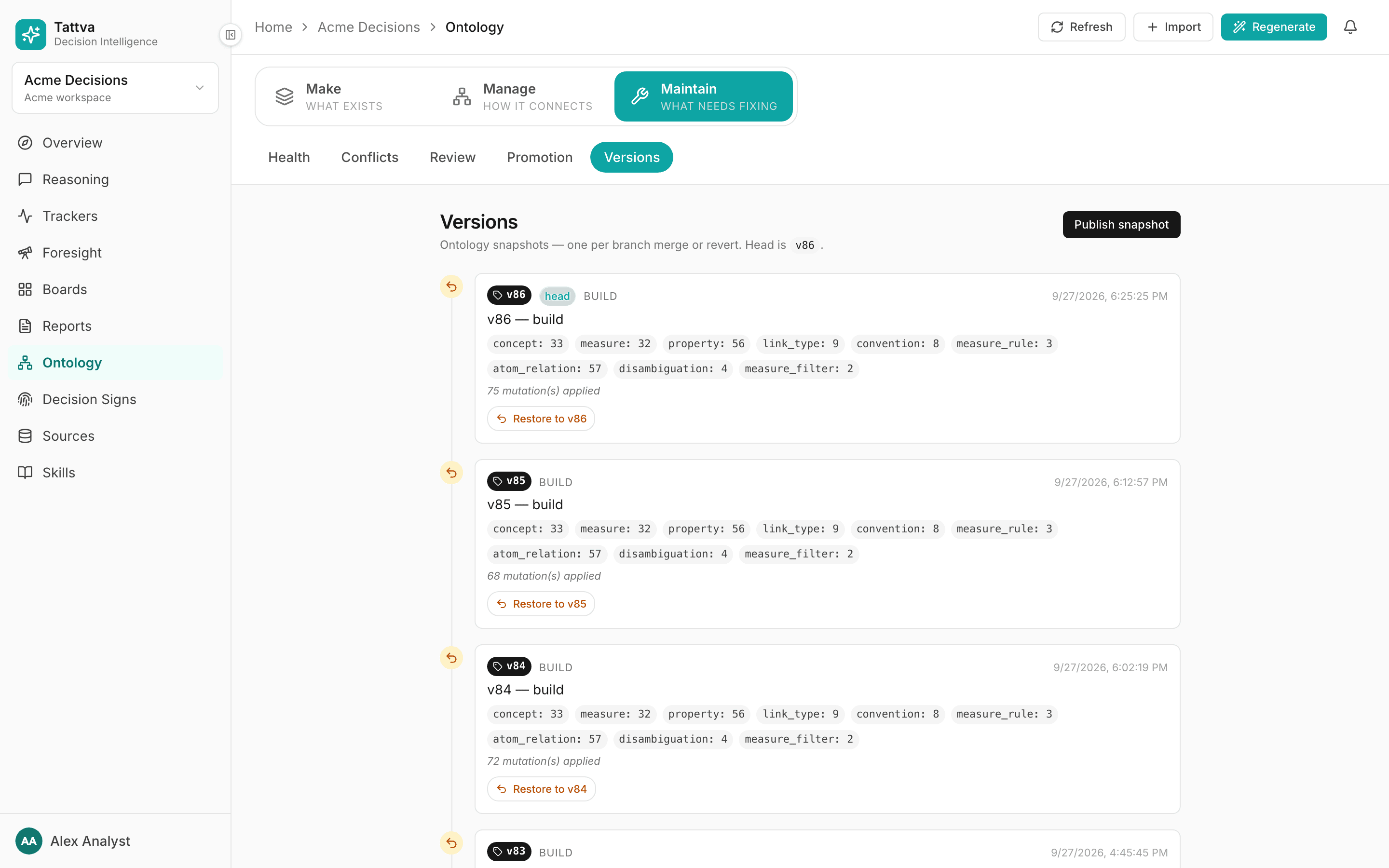
- Publish snapshot saves the current ontology as a named checkpoint. It covers concepts, metrics, conventions, bindings, relationships, and dashboards with their metric links. Sources and column meanings are not included.
- Revert this version appears on a merge. It removes the items that branch created from the live ontology ("Hard-deletes the atoms this branch created from the live ontology."). Use it when one accepted batch was wrong.
- Restore to vN rolls the whole ontology back to that checkpoint. Items created since are removed. A checkpoint is saved before the restore, so you can undo it.
Revert removes, it does not edit
Reverting a branch deletes what it created. To change one stored definition, upload a new document instead; see Review queue.
Working feedback
A Not satisfied comment does not change any answer, not even its author's, until your team settles it. The lasting fix goes into the ontology, as a convention, glossary term, stored definition, column annotation or value grouping, so every member gets the same answer.
Comments arrive in Maintain › Feedback as New. Each shows the reasons picked, the question, What was wrong and What is correct as the author wrote them, who left it and when, Open the answer and its Trail, and an excerpt of the answer. Work it with:
- In review: you picked it up. Add a team note for your colleagues; the author never sees it.
- Create convention: a convention card, prefilled from the comment, goes to Review. Accepting it there moves the comment to Fixed.
- Create correction: the comment goes to Review as a
correctioncard with the fix you describe. - Applied: you changed the ontology yourself. Pick the Type (convention, term, stored definition, column annotation, value grouping or other) and name it under Reference. A note is optional; the author sees it.
- Already covered: an existing rule already gives the right answer. Pick its Type and Reference.
- Not applied: give a reason; the author sees it.
- Delete: removes the comment outright, for duplicates and tests. The author keeps no record of it.
The author sees the outcome on the answer and gets a notification. See Work answer feedback.
A weekly routine
- Open Make › Data. If the "Sources changed since last build" banner or a "curation edit(s) saved but not yet in effect" banner shows, a build is due.
- Run Regenerate from the Ontology header and read the ⚠ lines in the progress panel, especially "not proposed" lines under
rules_extraction. - Clear Maintain › Review: accept, reject or defer every proposal. Check Deferred too.
- Open Conflicts and sort out every HIGH item. Read the Modelling findings: they come from real questions that went wrong.
- Check Same-slug across origins and deprecate what should not win.
- Look at Health: note what Blocking: and Critical Gaps say, and pick one to fix this week.
- Clear the Promotion Inbox.
- Clear Maintain › Feedback: work every New comment, and settle the In review ones with a fix in the ontology, Already covered or Not applied.
- Spot-check two answers from the week: open the Trail and compare the Compute SQL with Try it. See How answers work.
- Before a large change, Publish snapshot.
Knowledge graph
Read the knowledge graph, add and verify relationships, use the node drawer, and set references.
Answer scope
Decide what Tattva answers in your project — example questions, the scope line, topics not answered yet, the date each metric is valid from, where figures may come from and which kinds of question are answered.