Connect and describe data
Add BigQuery tables and uploaded files, then describe their columns so Tattva reads them the way you do.
On this page you connect your data and describe it. You add BigQuery tables and upload files on Sources, check what each column means, set how each table is keyed, and learn where column profiles come from. Everything later, from metric proposals to the choices a user is offered, is built on this.
Where your data can come from
Open Sources in the sidebar. It has four tabs: All, Upload, Apps and BigQuery.
| You have | Add it on | Accepted |
|---|---|---|
| Tables in your BigQuery warehouse | BigQuery | Any table the workspace's BigQuery identity can read |
| Spreadsheets | Upload | .csv, .tsv, .xlsx, .xls |
| Metric documents (your written rules) | Upload | .md or .txt |
The file picker also lets you choose .json and .parquet, but they go through the reader built for CSV and Excel. Convert them to CSV, or load them into BigQuery, before relying on them. See Supported data sources.
Stored metric definitions run on BigQuery only
A metric you define with a complete query is run against BigQuery. Put the tables your key metrics need in BigQuery and connect them from there. Uploaded files can be asked about, but a stored query cannot read them, and Tattva never joins a file with a BigQuery table.
Connect BigQuery tables
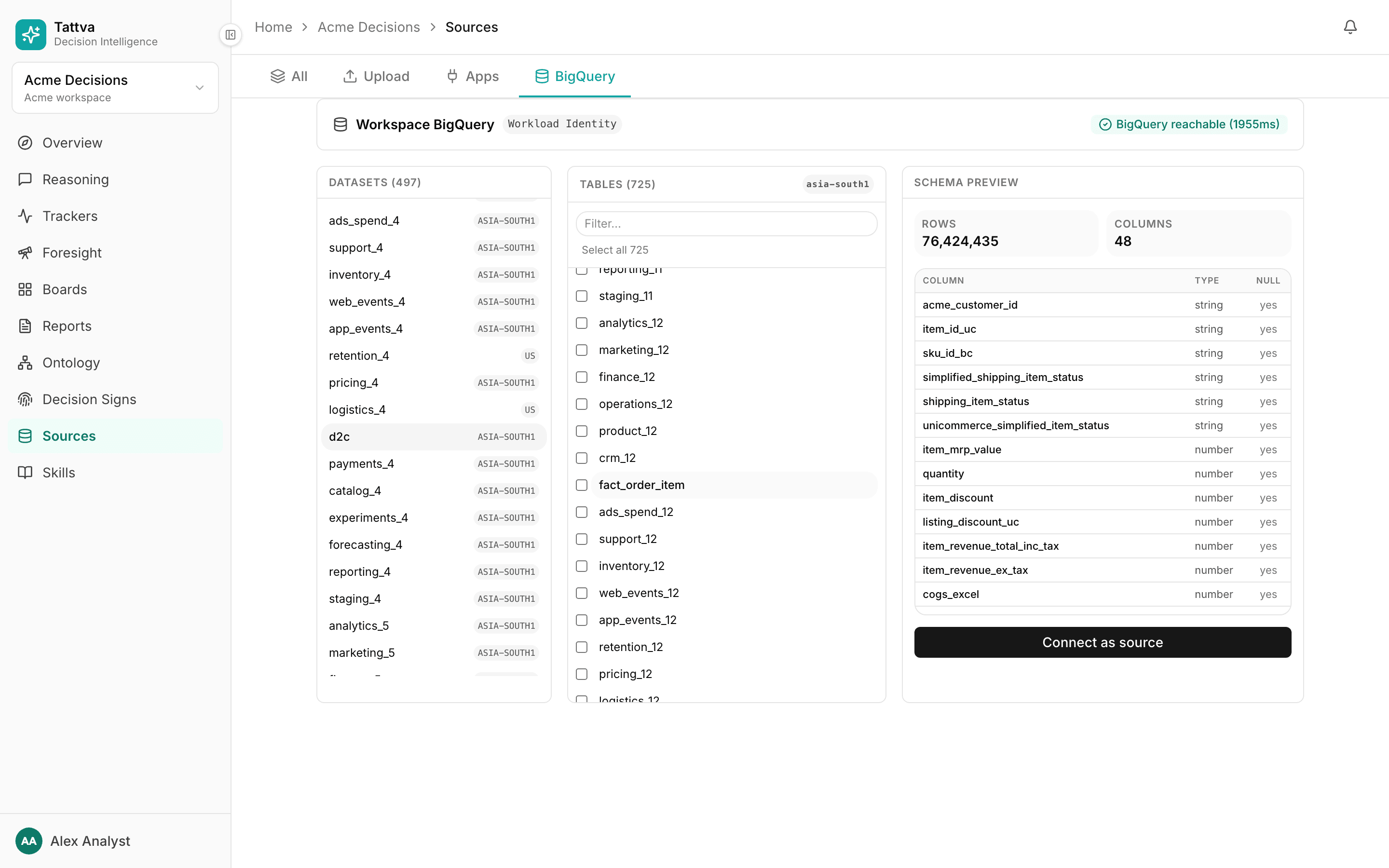
Open Sources › BigQuery. The Workspace BigQuery header shows whether the workspace can reach BigQuery through its Workload Identity. If it shows a warning, the workspace's BigQuery identity has not been set up or lacks access. That is done by whoever operates your Tattva deployment, not in the app; send them the message shown. The dataset and table lists do not appear until it works.
Pick a dataset under Datasets. Its tables appear under Tables. Type in Filter… to narrow the list.
Click a table to see its Schema preview: Rows, Columns, and each column's type and whether it is nullable.
Click Connect as source. To add several tables at once, tick their boxes (or click Select all N) and click Connect N as sources. Each table becomes its own source.
Connected tables appear on Sources › All.
Upload files
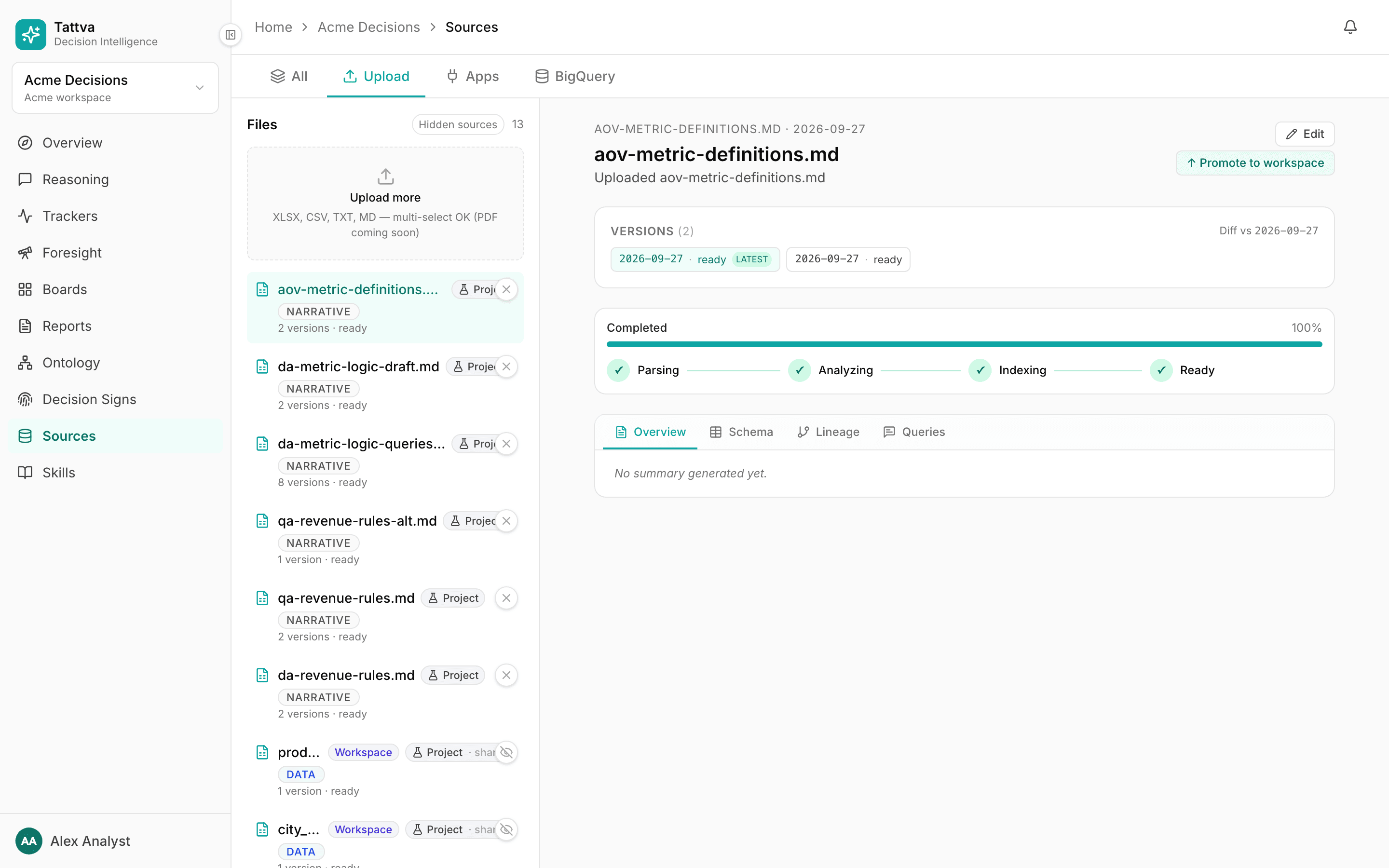
Open Sources › Upload and click Upload more. Pick one or several files in the file picker.
Each file runs through Parsing → Analyzing → Indexing → Ready. The row shows its progress. If it stops with "Pipeline failed — check logs.", fix the file and upload it again.
When a file is Ready, click it to open its detail: Overview, Schema, Lineage and Queries.
Metric documents go through the same box. Their text is kept word for word and read at the next build. How to write one: Write a metric document.
Hidden sources lists workspace sources this project has hidden.
Describe the columns
Tattva drafts a meaning, role and aggregation for every column during a build. Check the columns your metrics use, and correct what is wrong. A wrong role or aggregation leads straight to wrong proposals.
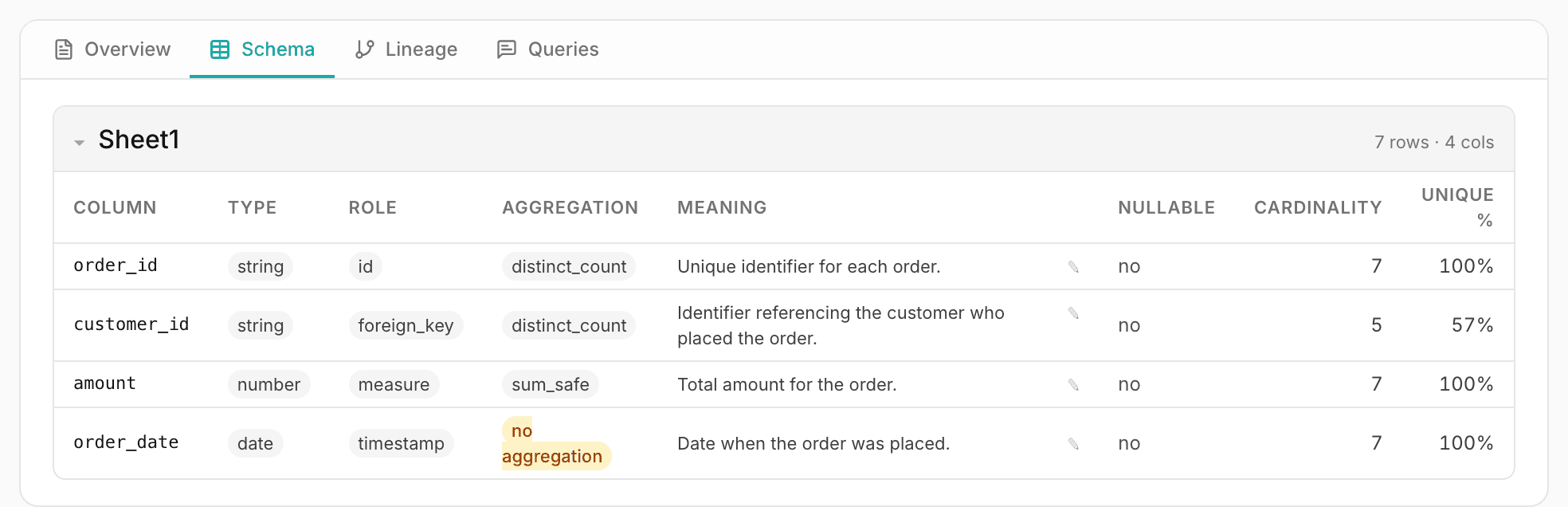
The Schema tab lists each column with Column, Type, Role, Aggregation, Meaning, Nullable, Cardinality and Unique %.
- Role says what the column is:
id,foreign_key,dimension,measure,flag,timestamp,text_label,descriptionorunknown. - Aggregation says whether adding the column up makes sense.
no aggregationmeans metric generation rejects any metric that sums or averages it. - Meaning is a one-line description. A user badge marks meanings a person wrote.
- Cardinality shown as
≥N(with Unique % marked*) was measured on a sample of rows. The real count can be much higher.
To edit a column:
Click ✎ (Edit meaning & role) next to the column's meaning.
Set any of Business meaning, Semantic role, Unit, Sensitivity, Aggregation hint and Temporal role. Each choice shows an Effect: line that says what the ontology will do with it. Leave a field on — inherit — to keep the drafted value.
Click Save. The form says "Saved — but not in effect yet." Your wording is kept and a build never overwrites it, but reasoning uses the last build until you run a new one.
This edits the source for every project
The Schema tab on Sources edits the source's own meaning, which every project that uses the source reads. For a change that should stay in one project, use the project override in Ontology › Knowledge Graph: open the source node, then its Schema tab. See Knowledge graph.
What to set, in order of impact:
| Column | Set |
|---|---|
| Money, quantities, counts you add up | Role measure, the right Unit, Aggregation hint sum_safe |
| Rates, ratios, prices repeated on each row | Aggregation hint avg_only, or none if it must never be aggregated |
| IDs that repeat across rows (customer, order) | Role id or foreign_key, Aggregation hint distinct_count |
| The date an event happened | Role timestamp, Temporal role event_time |
| Names, emails, phone numbers | Sensitivity pii (see Sensitive data) |
Column profiles
Each build profiles every table: row count, null count, distinct count, and minimum, maximum and average for numbers. For text columns with 1,000 distinct values or fewer, it also records the 20 most common values with their counts.
You see a profile in Ontology › Knowledge Graph: open a table's node and its Schema tab. A column shows "≈N distinct" and "common: …" followed by the top values.
- Common values are never recorded for a column whose name marks it as personal data (
email,phone,address,customer_id, a person's name such ascustomer_name, and similar), or for a column markedpiiorrestricted. - A BigQuery column carrying a policy tag is not profiled at all: no counts and no common values.
- A BigQuery table is profiled again at the next build once its profile is more than 7 days old.
Why it matters: when a question leaves out a value a definition needs, such as a warehouse, Tattva asks for it and offers these common values as choices. A column with more than 1,000 distinct values, or a non-text column, has no common values.
The Values button on the same drawer is a grouping tool, not a profile. Its list holds up to 500 distinct values of the column, in alphabetical order, with no counts and no sign of how many more exist. See Inputs and groupings.
Check exact values in BigQuery
Neither list tells you every spelling a column holds. Before you compare against a value in a metric document, check its exact spelling and case in the BigQuery console, for example SELECT warehouse_name, COUNT(*) FROM … GROUP BY 1 ORDER BY 2 DESC.
What makes a table usable
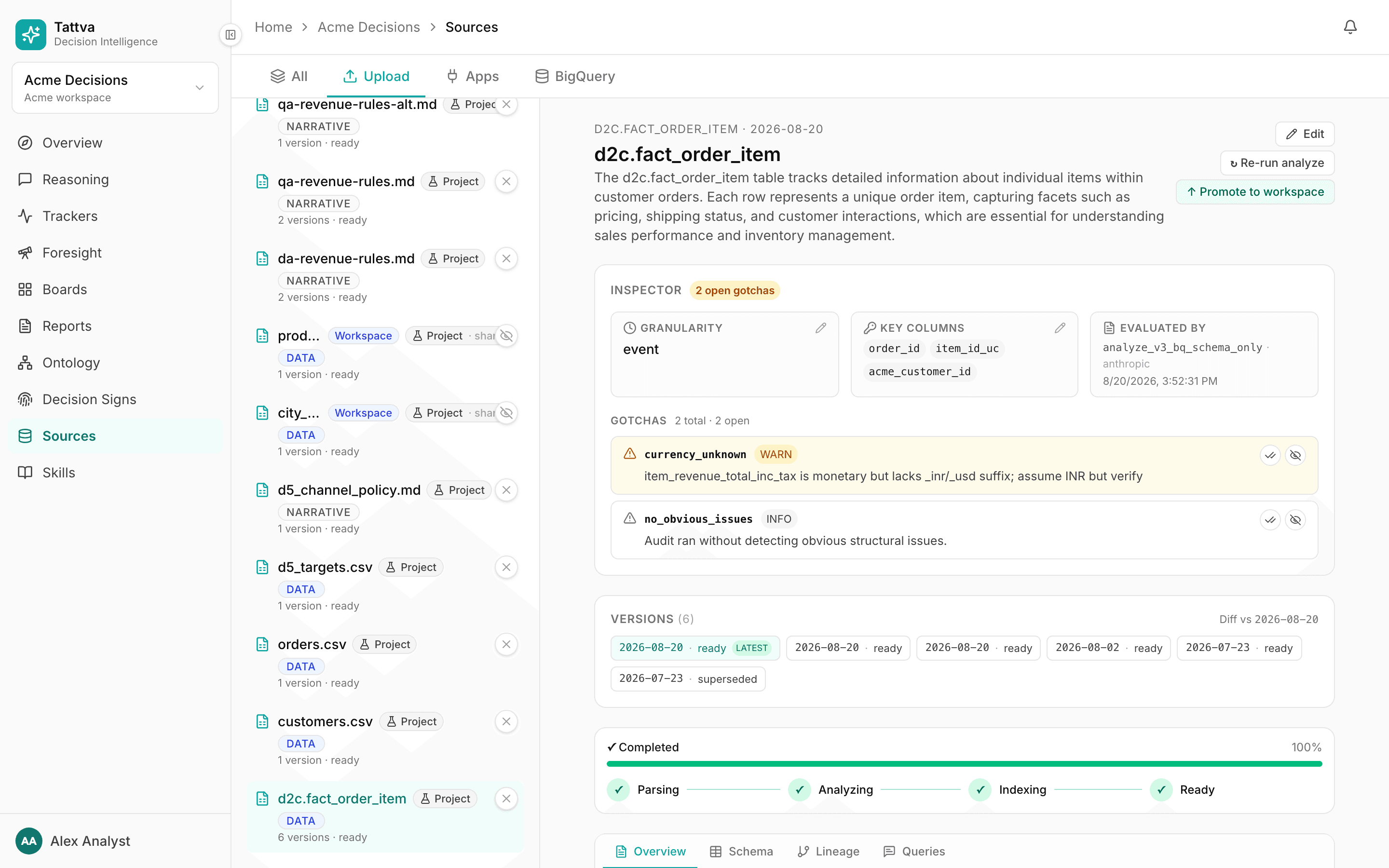
Open a source's Overview tab. The Inspector shows three things. Correct them with the pencil; an edit applies to this project and shows edited · revert.
- Granularity: how often the table has a row:
realtime,hourly,daily,weekly,monthly,quarterly,snapshot,event,mixedorunknown. An order-item table isevent. - Key columns: the columns that identify one row, for example
order_idandsku. Without them, Tattva cannot tell a one-to-many join from a many-to-one join, and answers will not join the table. - Evaluated by: which analysis filled these in, and when.
Gotchas are problems the analysis found in the table, each with a code, a severity and a message. Read every open one. Acknowledge one you have seen (it stops being flagged until the next ingest) or suppress one that is wrong for this source (it is never raised again). If you fix the data, click ↻ Re-run analyze.
Edit source changes the name and description for this project only. The original is kept.
A table is ready for metrics when:
- it has one row per clear thing, and you know what that thing is;
- its key columns are set;
- the columns your metrics use have the right role and aggregation;
- the date column you filter periods on is the event time, not the time the row was written;
- any exclusion your team always applies, such as cancelled items, can be written as a column condition.