Build the ontology
Run a build, read its phases and warnings, and know what a build does to proposals and to the definitions you already accepted.
A build is how Tattva learns from your sources and your documents. On this page you start a build, follow its phases, read the warnings it leaves, and learn what it changes. You also learn the two banners that tell you a build is due. Run a build after you connect data, after you edit column meanings, and after you upload a metric document.
Where the ontology lives
Open Ontology in the sidebar. Its tabs are grouped in three modes.
| Mode | Tabs | What you do there |
|---|---|---|
| Make (what exists) | Data, Workspace Library, Decisions, Patterns | Start builds. Read and correct metrics, stored definitions, families, conventions and column meanings. Data has four sub-tabs: Domain, Data, Decisions, Discussions. A stored definition's Definition tab (SQL, validation, Available from) opens from Definition → on its Domain row or in Data › Metrics; a Workspace Library definition opened from another project is read-only. In Patterns, the example questions of active patterns are shown to people under What you can ask on Reasoning, in the order set with ↑ ↓ (see Answer scope). |
| Manage (how it connects) | Knowledge Graph, References | Check tables, relationships and joins. Group raw values. Override column meanings for this project. |
| Maintain (what needs fixing) | Health, Conflicts, Review, Feedback, Promotion, Versions | Accept or reject proposals. Work through answer feedback. Work findings. Revert a change. |
The header on every Ontology tab has Refresh, Import and Regenerate.
Start a build
There are three ways to start the same build. Where you see its progress depends on how you started it.
- Regenerate in the Ontology header, on any Ontology tab. A panel opens at the bottom right of the screen and lists each phase as it runs, with its duration and any ⚠ warnings. The Build Ontology card on Make › Data does not show this build.
- Build Ontology → on the Build Ontology card at the top of Make › Data. The card itself shows the phases and each one's summary. After a build finishes, the button reads Rebuild. The card does not list warnings.
- Rebuild → or Rebuild now on one of the banners described below. These start the build through the card, so the card shows it.
Only one build runs at a time. If you click Regenerate while a build is running, the panel follows the running build instead of starting another. Use Regenerate after uploading a metric document: it is the only view with the warnings.
Open Ontology and click Regenerate.
Watch the panel. It shows "Building ontology…" and then "Ontology rebuilt" or "Build failed". A green tick marks a finished phase, a red mark a failed one. Rows appear in the order phases start, so rules_extraction is near the bottom: scroll the panel's list to find it.
Read any ⚠ lines under a phase before you close the panel. They name what the phase could not use. A clean read of a document is rules_extraction with a green tick and no ⚠ lines under it.
Open Maintain › Review and look for your metric's slug. If it is not there yet, wait a few minutes (see below) and reload.
Some work continues after "Ontology rebuilt"
"Ontology rebuilt" appears when the phases finish. Checks that run after them keep going for a few more minutes: the dry run of your stored definitions, conflict checks, and entity extraction from documents. More Review cards and Conflicts can arrive in that time.
The phases
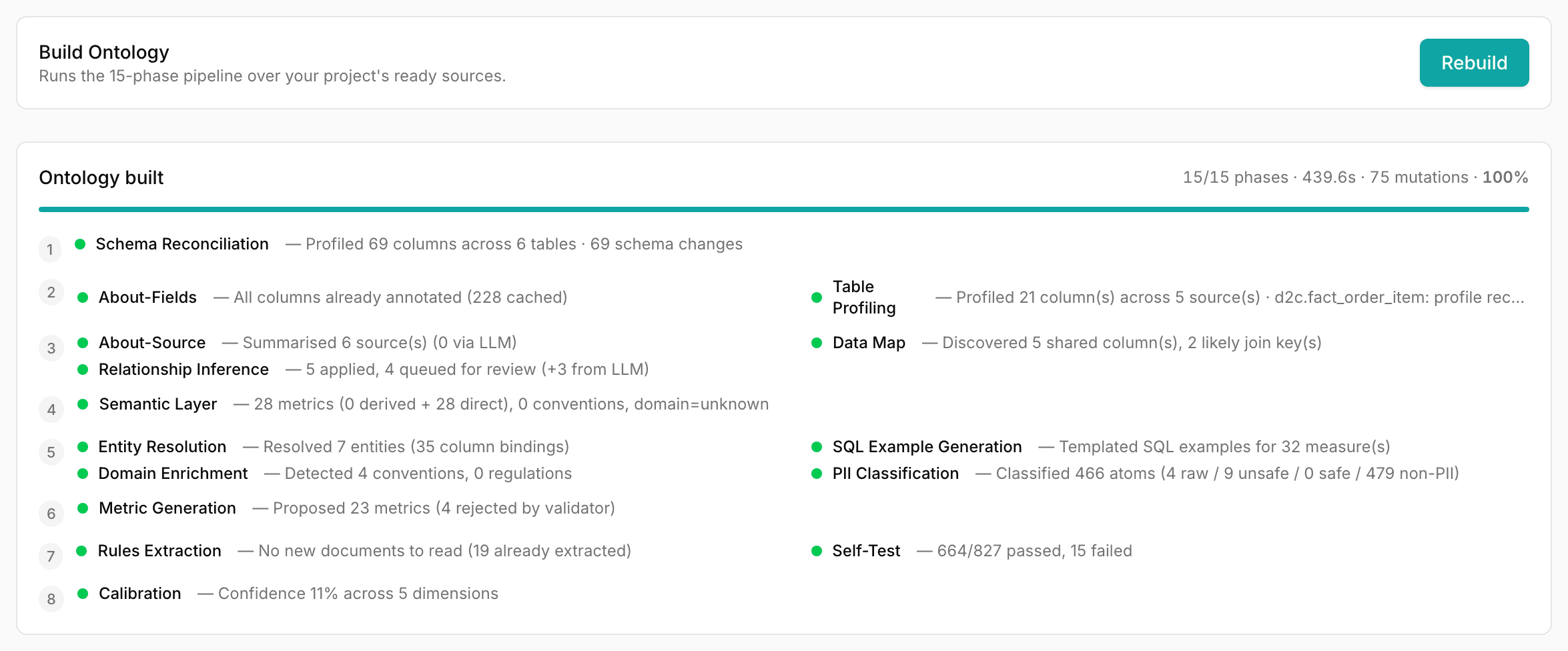
When you start a build from the card or a banner, the Build Ontology card groups the phases into numbered steps. Phases in the same step run in parallel. Each phase shows a dot (grey waiting, blue running, green done, red failed) and a one-line summary when it finishes. The card also shows how many phases are done, the time taken and the number of changes made. A build started with Regenerate leaves the card unchanged.
| Step | Phase | What it does |
|---|---|---|
| 1 | Schema Reconciliation | Reads the tables and columns of every ready source. Its result appears as Tables Discovered. |
| 2 | About-Fields | Drafts each column's meaning, role, unit, aggregation and sensitivity. Your own edits are kept. |
| 2 | Table Profiling | Counts rows, nulls and distinct values, and records common values of qualifying text columns. |
| 3 | About-Source | Summarises each table: what it is for, its grain and its key columns. |
| 3 | Data Map | Finds columns that appear in several sources and may be join keys. |
| 3 | Relationship Inference | Proposes relationships between tables and checks each one against the values in its two columns (below). Unverified ones go to Review, or all of them, depending on Link proposals (below). |
| 4 | Semantic Layer | Turns columns into concepts, properties and measures. |
| 5 | SQL Example Generation | Writes example queries for metrics with a formula. |
| 5 | Entity Resolution | Groups columns into business entities (Product, Customer, Order) across sources. |
| 5 | Domain Enrichment | Detects conventions such as currency, date format and time grain. |
| 5 | PII Classification | Classifies every atom by whether it touches personal data. |
| 6 | Metric Generation | Proposes metrics from the columns and entities. |
| 7 | Rules Extraction | Reads your metric documents and proposes definitions, families, filters and settlements. |
| 7 | Self-Test | Checks metrics, relationships and terms, and raises findings. |
| 8 | Calibration | Scores the ontology on five measures: sources described, metrics named, metrics linked to a source, open conflicts, and sources with question patterns. |
Rules Extraction runs after Metric Generation on purpose: the metrics your document mentions exist by then. Its summary reads "Read N documents → M rule proposals", "No new documents to read (N already extracted)" or "No narrative documents to read". When the build had to read a document twice, the first form says so: "Read N documents (N retried) → M rule proposals".
Choose what happens to generated metrics. Settings › Project › Ontology build › Metric generation sets how a build lands the metrics it derives from your columns (Semantic Layer and Metric Generation): Automatic adds them, sending low-confidence ones to Review; Send to Review puts every one in Review, so none goes live until someone accepts it; Off derives none. The Workspace Library has its own setting. In every mode, a generated metric built only from aggregates one of your stored definitions already computes, such as SUM(product_value_exc_tax_exc_shipping_charges) next to a net revenue definition, is not created. The build log lists each one it skipped and why.
Choose what the build proposes on its own. Two more settings in the same panel:
- Concept proposals decides whether the build asks an AI for glossary concepts in your sources. Send to Review (the default) puts each proposed concept in Review. Off proposes none; currency, date-format and similar conventions are still detected. A source is asked about once per version: a rebuild proposes concepts only for a new source or a source with a new version. A concept is kept only when its name or one of its aliases appears in the source's own summary, key findings or column names. A concept is not proposed under the name of an existing concept or metric.
- Link proposals decides what happens to the relationships the build infers between tables. Automatic (the default) adds the verified ones and sends the rest to Review. Send to Review puts every one in Review. Off infers no new relationships; existing ones stay.
- Disambiguation proposals decides what the build does with column names that appear in two or more sources (for example
net_revenuein two versions of one table). Off (the default) proposes none; disambiguations that already exist stay, and switching to Off withdraws the pending cards. Send to Review puts each shared column name in Review as a disambiguation. Automatic adds the ones it is confident about and sends the rest to Review. Sources with proposals switched off are never counted.
How a relationship is verified. The build counts how many distinct values the two join columns share. It uses the stored values of both columns when they are complete, and otherwise runs one query per pair on the same engine. It also checks whether each column holds every value once (its distinct values are at least 95% of its non-empty rows), from the column's stored profile, or from the row counts that same query returns when the profile lacks them. The rules are the same whichever way the pair was found (a foreign-key hint, matching column names, or an AI suggestion). Then:
- No shared values: the relationship is not created. The build log counts these as "N rejected: no shared values".
- Both columns repeat their values (many-to-many): joining would multiply rows, so the relationship is not proposed. The build log lists each pair and counts them as "N skipped: would multiply rows".
- Fewer than half of the smaller column's values meet the other column, or that column holds one value only: the relationship goes to Review. The card shows the rate, for example "measured: 42% of values meet (120 of 286)".
- Half or more, and one column holds each value once (many-to-one or one-to-one): the relationship is verified and added.
- Not measured, because the two tables are in different engines, the query failed, or the build could not count whether either column holds each value once: not verified, so it goes to Review. A card whose uniqueness was not counted says "uniqueness not measured" and is labelled many-to-many.
Each build measures again; a measurement is reused for 7 days unless either table has a new version. A relationship that no longer measures as verified loses verified on the next build, including an existing relationship that now measures as many-to-many; the build log lists those as "un-verified live link pair … would multiply rows". A relationship you marked verified, or whose keys you edited, is not changed by a build. Relationships with no shared values are not given to the agent, and unverified or partial ones are given with their rate.
A link card is about two tables, in either direction. When you reject one, the build does not propose the same two tables again, in either direction, and does not add a relationship between them on its own. Accepting a card for those tables, or adding the relationship yourself, lifts this.
To switch proposals off for one source only, open it on Sources and click Turn proposals off. See Sources.
Read the warnings
A phase can finish and still have lost part of its input. When that happens, the Regenerate panel lists a ⚠ line under that phase's row. The panel names phases by their internal key, so the document step is rules_extraction.
For a metric document, each line reads document: name not proposed — reason, or document: could not be read — reason. The name is the metric's slug, or (document) for the text outside the metric sections. The reasons you will see most:
| Reason | What to do |
|---|---|
metric definition with no SQL | The section had no query and too little SQL to write one. Add the query you run. |
settlement proposal with no day count | Say the settlement as a number of days: "RTO takes 21 days to show up". |
filter proposal with no predicate | Name the column and the condition: "exclude rows where cancellation_reason is set". |
adjustments are no longer extracted — define the adjusted number as its own metric | Write the adjusted number as its own metric with its own query. See Write a metric document. |
malformed proposal — … or the extractor returned no proposals list — nothing was read | The extractor produced something it could not use, also when Tattva read that part again. Rewrite the section more plainly and upload it as a new document, or ask for another read with Read again on next build (below). |
the section has a query but no metric definition was proposed | The read missed a metric: the section holds a complete query and no definition was read from it, also when Tattva read that section a second time. Give the metric its own heading with one query block, and keep every condition inside the query. |
the extractor's answer for section “…” reached its output limit (16,000 tokens) and was cut off; its query is N characters, and one answer holds a query of roughly 12,000 | The section's query is too long for one answer, so the metric was not read. Reading again gives the same result. Split the query into smaller metrics, or make a shared part its own metric and use it with {{ metric('…') }}. See Write a metric document. |
(document) not proposed — the extractor's answer for the text outside the metric sections reached its output limit … | The metrics were read, but families, filters and settlements written outside their sections were not. Move them into a shorter document of their own. |
Read the warnings after every document upload
A document that produced nothing still shows a green tick. The ⚠ lines on the Regenerate panel are the only place that says why a metric was not proposed. The Build Ontology card shows only the one-line summary.
The banners that ask for a build
The top of Make › Data shows a banner when the ontology is behind your changes.
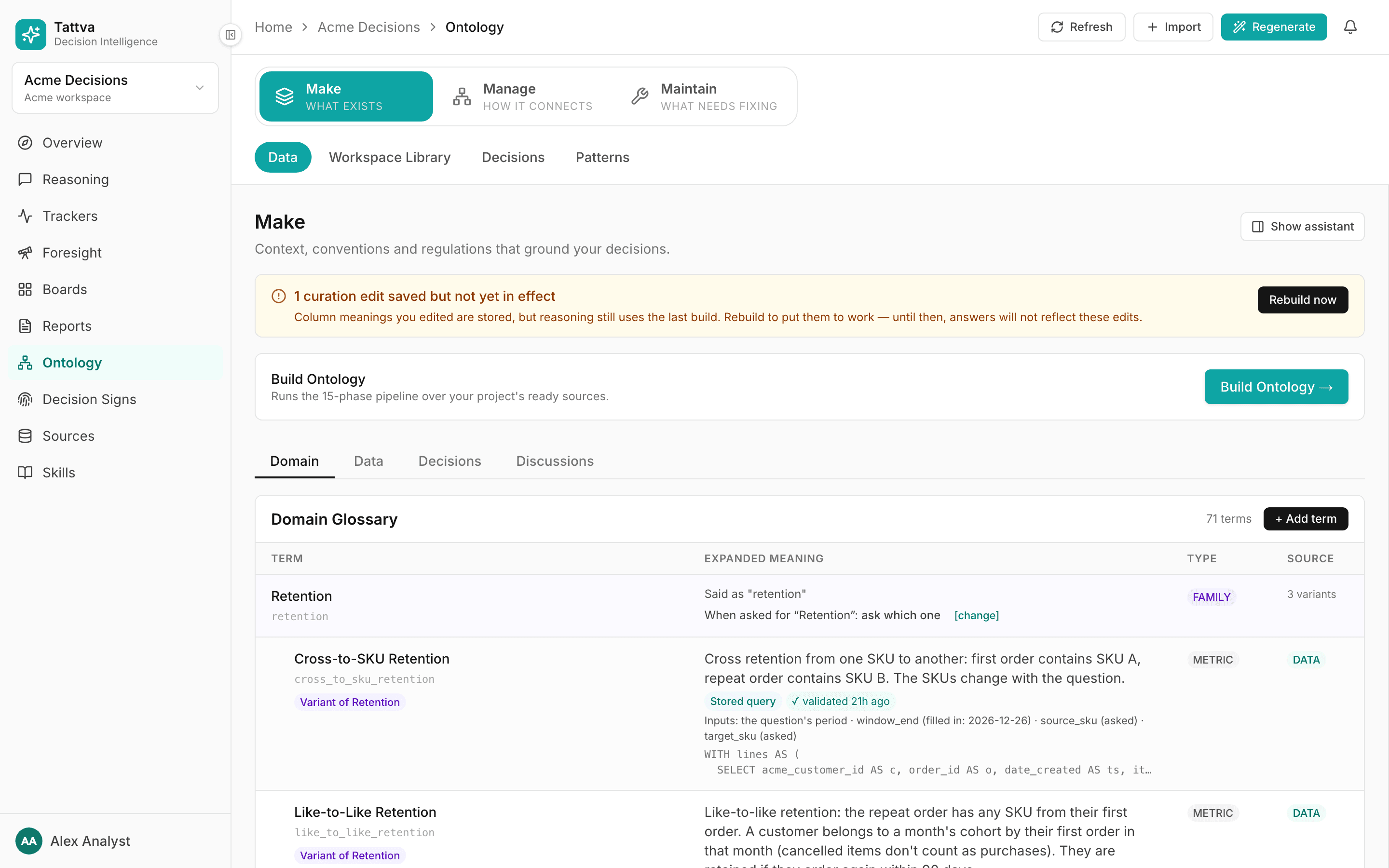
- "Sources changed since last build (…): N added, N re-uploaded, N deleted." Tables were added, re-uploaded or removed since the last build. It lists the sources and, for a re-uploaded table, the columns added, removed, renamed or retyped. Click Rebuild →. Before the first build it reads "N sources ready, ontology not yet built." with Build now →.
- "N curation edits saved but not yet in effect". You edited column meanings since the last build. Reasoning still uses the last build. Click Rebuild now.
Uploading a metric document does not raise a banner
The banners track tables and column edits. A new .md or .txt document is not listed. Start the build yourself with Regenerate after you upload one.
What a build changes
Your curation is kept. Column meanings, roles and aggregations you wrote are read by the build and never overwritten.
What the build is unsure of goes to Review. Concepts, entities and metrics the build proposes with less than 85% confidence are queued in Maintain › Review under a provenance chip such as "Build review — 2026-09-26 10:30"; the rest are applied. Relationships whose values were not verified are queued too. Everything read from your documents goes to Review whatever its confidence, and nothing from a document is applied until you accept it.
Each document is read once. A later build skips any document that already produced proposals. A document whose source you deleted is not read at all: deleting a document source deletes its text and retires its cards still waiting in Review. To change an accepted definition, upload a new document. See Replace a definition.
A small document is read in one go; a large one one metric at a time. Tattva estimates the size of the answer from your queries: each section's query length plus about 1,000 for each metric. Up to 12,800, the whole document is read at once, so a metric that uses another metric of the document can refer to it by name. Above that, each section that holds a query is read on its own, with the whole document as context, and the text outside those sections is read once more; up to four of these reads run at the same time. If a whole read is cut off at the output limit anyway, the build reads the document section by section instead, without a warning. A part whose read failed (a section with a complete query and no definition, or a reply the extractor could not use) is read once more on its own; the other parts keep their cards. A part still missing after that counts as read: later builds do not try it again by themselves, and its ⚠ line says what was missed.
You can ask for a document to be read again. On Sources, open the document's source, click Read again on next build and confirm, then click Regenerate. The build reads the latest upload of that document again and proposes new cards. The cards from earlier reads stay in the review history: accepted cards stay accepted, and cards still waiting in Review stay next to the new ones, so reject the ones you no longer want. Asking needs permission to upload sources in the project; for a Workspace Library source, permission to edit the Workspace Library.
Pending proposals stay as they are. A build does not re-check a proposal already in the queue. Its checks were run when the document was read, and Accept uses that result. Proposals that point at a source you deleted are retired.
Accepted definitions are never changed. A build does not rewrite a stored definition you accepted, even when Metric Generation proposes a formula metric with the same name. Only a reviewed replacement from a new document changes it.
Accepted definitions are re-checked. After the phases, each build dry-runs every stored definition this project accepted against BigQuery. A definition that no longer compiles, usually because a column was renamed or dropped upstream, raises a high-severity finding in Maintain › Conflicts (under Data Quality): "Stored definition of metric no longer runs". Until you fix it, questions about that metric cannot be computed from its definition. The finding clears itself at the first build where the definition compiles again. The same pass also flags families that lost a variant or their default, and a stored definition that returns the same value as a formula metric on the same table. See Maintain the ontology.