Knowledge graph
Read the knowledge graph, add and verify relationships, use the node drawer, and set references.
Ontology › Manage ("HOW IT CONNECTS") has two tabs: Knowledge Graph and References. The graph shows how your sources, concepts and metrics connect. The relationships you verify here decide which joins a computed metric may use.
Reading the graph
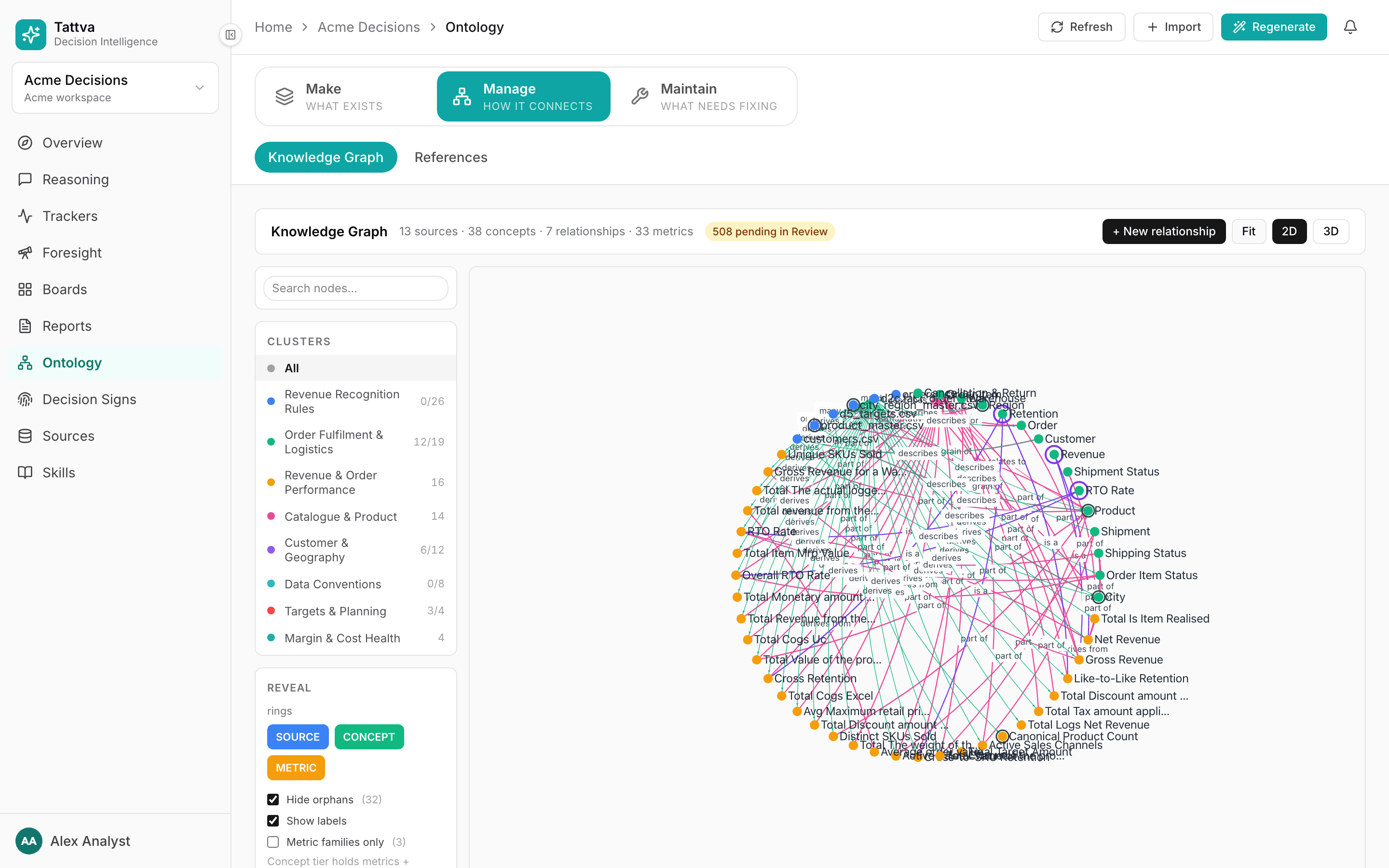
The header counts sources, concepts, relationships and metrics. If proposals are waiting, a link reads N pending in Review.
Nodes come in four rings, which you can switch on and off under Reveal:
- source: a table or file. Its drawer calls it OBJECT.
- concept: a business idea such as order or customer.
- metric: a measure. With families defined, Metric families only shows just the families.
- dashboard: an active registered dashboard, next to the metrics it shows. Clicking it shows its link, whether it comes from the Workspace Library, and whether it is paused because a metric it shows changed, with a link to Make › Dashboards. A dashboard archived in this project is not drawn.
Edges carry a label:
| Label | Meaning |
|---|---|
| many → one, one-to-one | A join between two sources where each row on the first side matches at most one row on the other |
| many-to-many | A join where rows repeat on both sides |
| derives | A metric computed from a source |
| measures | A metric that measures a concept |
| describes | A source that describes a concept |
| shows | A dashboard that shows a metric (it is linked to the metric itself, so a rename keeps the edge) |
A thicker edge is verified. Arrowheads point at the target.
Useful controls:
- Search nodes… highlights matching nodes.
- Clusters narrows the graph to one group of related atoms. All shows everything.
- Click a node to open its drawer and focus the graph on it. Choose 1 hop or 2 hops of context, and Clear to see the whole graph again.
- Hide orphans and Show labels tidy the picture. Fit, 2D and 3D change the view.
- Browse by type, below the graph, lists every concept as text.
Why relationships matter
When code computes a formula metric, it joins other tables only along verified many-to-one links. Each row of the metric's table then matches at most one row of the joined table, so the total cannot grow by repetition. Anything else is refused with the reason, never approximated:
no verified link connects <table> to <table>: add or verify the relationship.… goes one-to-many at …; it would repeat … rows and change the total: the only route multiplies rows.… joins to … along more than one equally short route …; runMetric does not pick one: two paths compete. Delete the wrong one.… combines two fact tables (… and …); compute each metric and combine: two fact tables are never row-joined. Compute each metric on its own.… cannot join across engines — compute each and combine: a BigQuery table and an uploaded file are never joined.
A stored definition is different: it runs your SQL as written, joins included. Relationships matter for formula metrics, and they also tell the agent how tables connect when it writes its own SQL.
Adding a relationship
Click + New relationship.
Choose the kind: Source join, Concept relation or Atom relation.
For a Source join, pick From source and type From column, then To source and To column. Choose the Edge type:
- Lookup — many of the first, one of the second (FK → PK): the usual choice. Put the fact table first.
- Entity join — one of each (1:1)
- Temporal — shared time dimension, many-to-many
- Master → detail — one of the first, many of the second
A computed metric can join along a many-to-one or one-to-one link, walked from its own table. A many-to-many link is never used for that.
Click Create relationship.
A source join you create is saved as verified. A Concept relation links two workspace concepts (is a, synonymous with, derives from) and needs the admin, owner or ontology admin role. An Atom relation links any two atoms, for example a metric to its family (is a (metric → its family)), or parts to a whole (decomposes into (parts sum to whole)). In the workspace library project, every kind needs one of those roles.
Checking an existing relationship
Click an edge to open it. The drawer shows From and To, the Join keys (N), Confidence and Verified.
Under each key pair the drawer shows the measured value overlap, for example "0 of 1 values meet (0%) · measured 2026-10-11". The count is the distinct values that appear on both sides, out of the distinct values on the smaller side. A pair that shares no values is shown in red: the join returns no rows. "Value overlap: not measured" means the build has not measured that pair.
A build verifies a join only when one of its two columns holds each value once, so the join is many-to-one or one-to-one. When both columns repeat their values, joining would multiply rows: the build does not propose that pair, and an existing join on it loses Verified on the next build. The build log names each such pair with "would multiply rows". See How a relationship is verified.
- Mark verified makes an unverified join usable for computed metrics. Verify only after you have checked the keys against the data.
- Edit on Join keys changes the columns compared, then Save join keys. Every extra key can only remove rows. Keys set by a person are kept: "Set by a person — the pipeline will not change these."
- Delete asks you to confirm, then removes the edge together with the same join stored in the opposite direction. A later build does not recreate it. Do this when two tables do not really relate; do not leave a wrong edge verified.
Delete and Mark verified need the owner, admin or ontology admin role, in every project. Other members see the drawer read-only.
A link of the form /ontology?edge=<id> opens the Knowledge Graph with that edge's drawer already open. Conflict cards use it in Open link →.
The Modelling conflicts on Maintain › Conflicts flag verified joins that cannot run or whose columns share no values, and can delete the link from the card. See Maintain.
The node drawer
Click a node to open its drawer. The tabs are Overview, Definition, Schema, Preview, Lineage and Queries. Definition appears only for a metric with a stored definition.
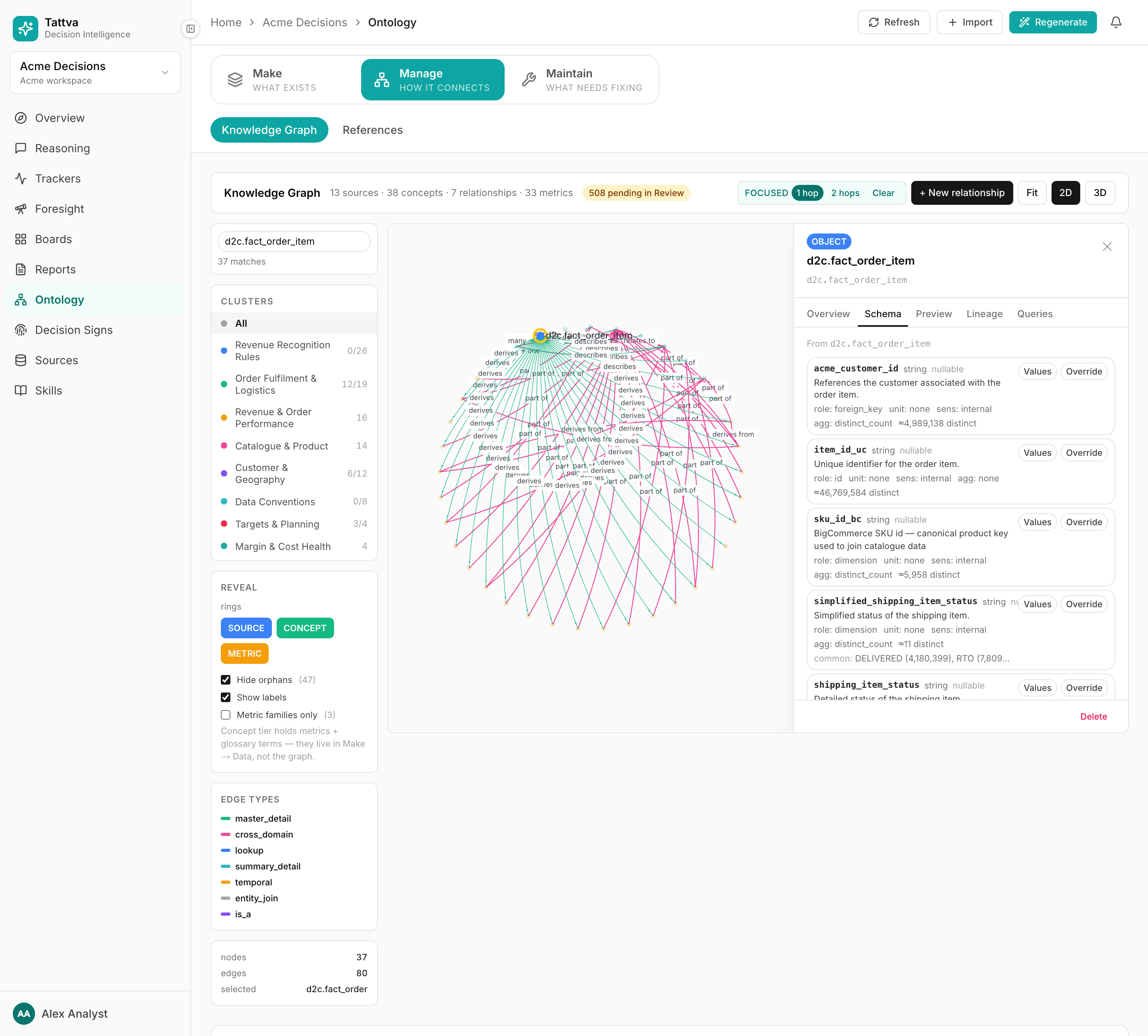
| Tab | What it shows |
|---|---|
| Overview | The description, the formula (for a formula metric), Derives from source for a metric (the source it is bound to), row and column counts, and Linked metrics |
| Definition | The stored definition: SQL, parameters, validation and Try it. See Metrics in Make |
| Schema | For a source: every column with its type, meaning, role:, unit:, sens: and agg:, and its profile ("≈N distinct", "common: …"). Values opens the grouping editor; Override changes the column's meaning or sensitivity for this project |
| Preview | Sample rows, for sources only |
| Lineage | Upstream sources, Downstream uses and Related |
| Queries | Question patterns that mention this node. They grow as people use Reasoning |
Groupings made under Schema › Values are explained in Inputs and groupings. Sensitivity overrides are explained in Sensitive data.
References
References holds two things the agent reads on every question. Editing them changes answers.
- Authoritative source: for each concept, the table to count and aggregate over. Click Set or Change, pick a Source, and say Why. Set this when a concept appears in several tables, for example a full orders table and a small sample. Without it, the agent chooses by the table's grain, and grain cannot tell a full table from a sample: a 7-row sample of orders has the same grain (one row per order) as the full table.
- Term resolution: which column an ambiguous word resolves to. Use + Add term with the phrase people actually say ("order amount") and the column it means. A Note is shown to the agent, so write it as guidance. Deleting a term stops the next build from adding it back.